.svg)



Key Takeaways
- Chatbot UI combines visual design, interaction patterns, and conversational elements for better usability.
- Effective chatbot interfaces make conversations clear, accessible, intuitive, and easy to navigate.
- Good chatbot UX balances user needs, business goals, and conversational efficiency.
- Real-world chatbot examples reveal practical patterns for designing better AI chat experiences.
- A structured chatbot UI design process helps teams create useful, consistent experiences.
A Chatbot UI is the interface that lets users communicate with AI through messages, prompts, buttons, and other interactive elements. A good interface makes it clear what the chatbot can do, how users can interact with it, and what happens after each message.
But designing a useful chatbot UI takes more than adding a chat box. Message bubbles, suggested prompts, loading states, error recovery, and follow-up actions all shape the experience.
So, what makes a chatbot UI feel simple, helpful, and easy to use? Let’s find out as we explore its key components, real-world examples, patterns, best practices, and the design process of chatbot UI.
What Is Chatbot UI?
Chatbot UI is the visual and interactive interface that allows users to communicate with a chatbot. It gives users a place to ask questions, enter instructions, review responses, and take the next step.
Depending on the product, a chatbot interface can be as simple as a basic text box. It can also be as advanced as an AI chat interface with file uploads, voice input, suggested prompts, and interactive results.
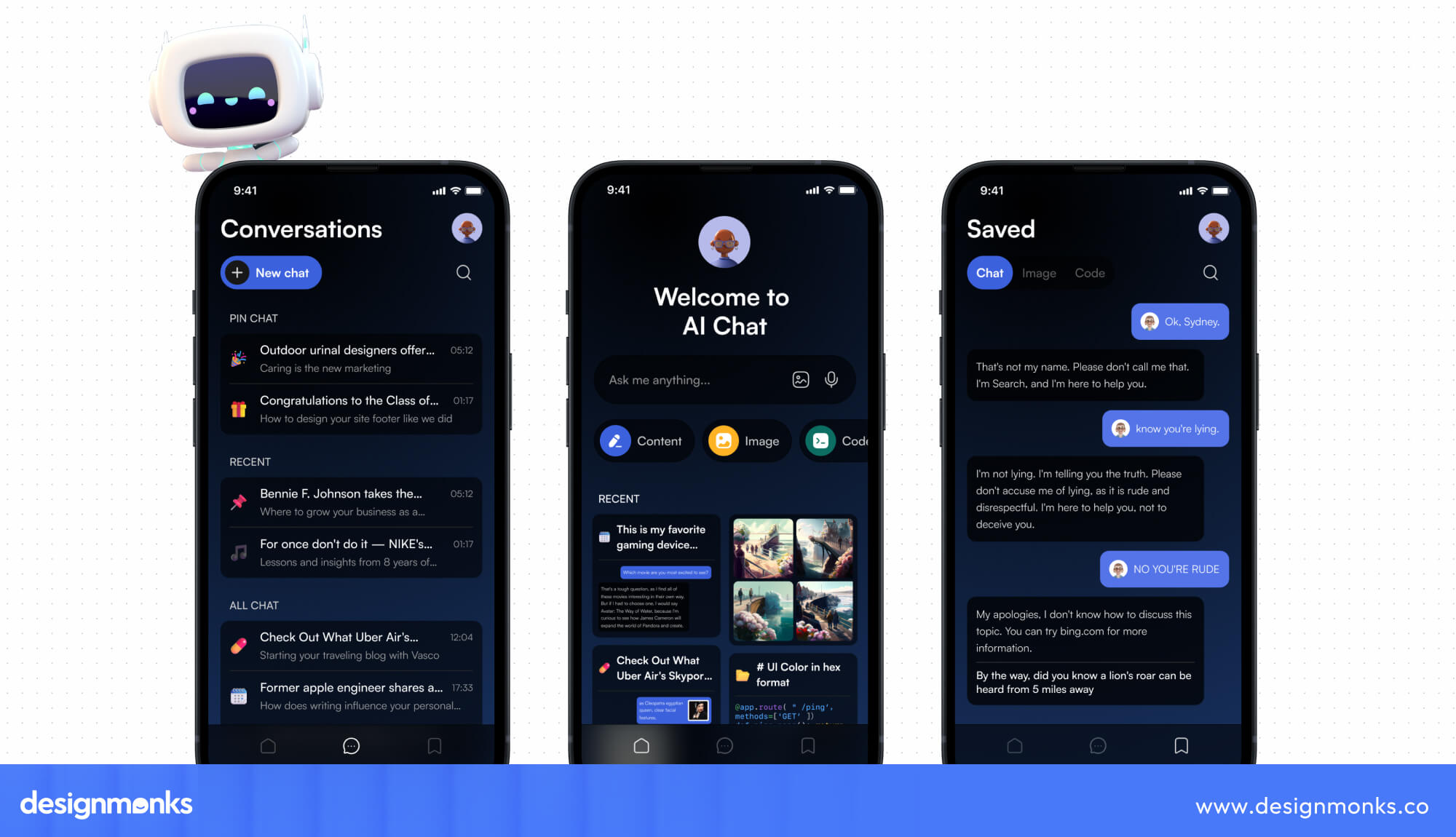
Unlike traditional interfaces that rely mainly on menus, forms, and navigation paths, a chatbot UI uses conversation as a primary way to interact with a product. Instead of searching through several screens to find an option, users can describe what they need and let the chatbot respond. This makes Conversational UI an important part of modern human-AI interaction.
However, a chatbot UI is not just a place to display messages. Every element around the conversation affects how easily users understand and control the interaction.
Message bubbles show who said what, and an input field gives users a way to respond. Suggested prompts help them get started, and status indicators show when the system is thinking or processing a request.
Chatbot UI vs Chatbot UX
Chatbot UI and Chatbot UX are closely connected, but they are not the same thing. UI is the visible interface, while UX is the experience created through that interface.
The difference becomes clearer when we compare them across specific aspects of the chatbot experience:
Good chatbot design needs both. A visually attractive chatbot can still provide poor usability if the conversation is unclear. A useful conversation can feel difficult if the interface makes it hard to interact.
Key Elements of a Chatbot Interface
A chatbot UI brings several elements together to make conversations clear and easy to navigate. The main components include:
- Chat Window: The main space where the conversation appears.
- Message Bubbles: Show user and chatbot messages in separate blocks, so the conversation is easy to read and follow.
- Input Field: Lets users type questions, prompts, or instructions.
- Quick Replies: Give users ready-made options for common actions.
- Avatar: Helps users identify the chatbot during the conversation.
- Status Indicators: Show when the chatbot is typing, loading, or processing.
- Interactive Controls: Buttons, cards, dropdowns, and other controls help users take action.
- Error & Recovery States: Explain problems and guide users toward the next step.
Essential Chatbot UI Components
A good Chatbot UI is made up of small interface elements that guide users through a conversation. Each one has a specific job. Some help users know what to say, while others show what the AI is doing or help them recover when something goes wrong.
Let’s look at the components that matter most and how each one improves the Chat Interface:
Chat Window & Message Bubbles
The chat window is where the conversation happens. User and AI messages should look different through alignment, spacing, typography, and clear visual hierarchy. This lets users quickly scan the message history and understand who said what.
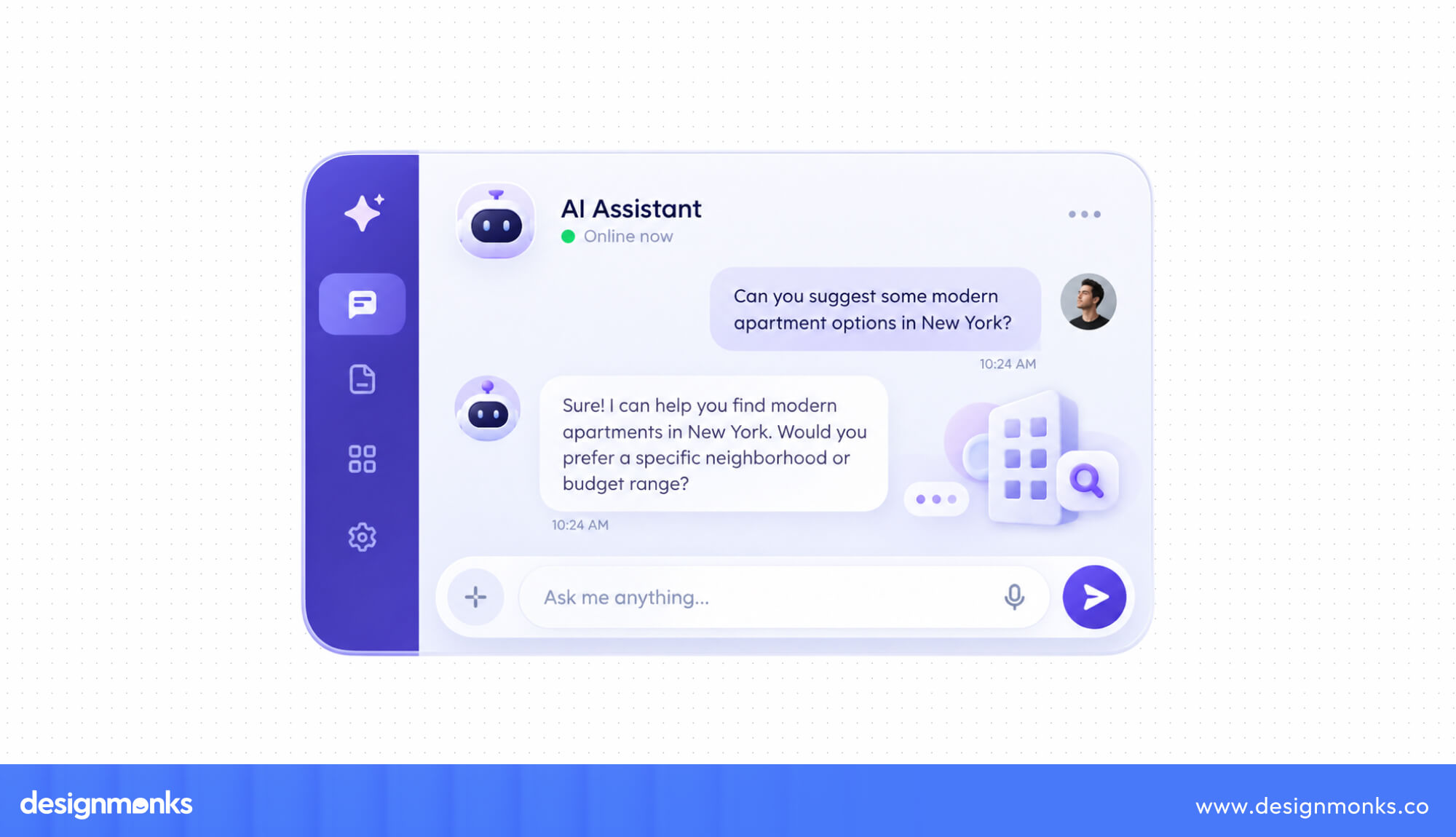
For example, user messages can sit on one side while AI responses use a different layout. Keep enough space between messages so the conversation feels organized without making the chat window feel empty.
AI responses may also include headings, lists, links, tables, images, or code.
Input Field & Send Controls
The input field is where users tell the chatbot what they need. It should make prompt entry feel simple while giving users clues about what they can ask or do.
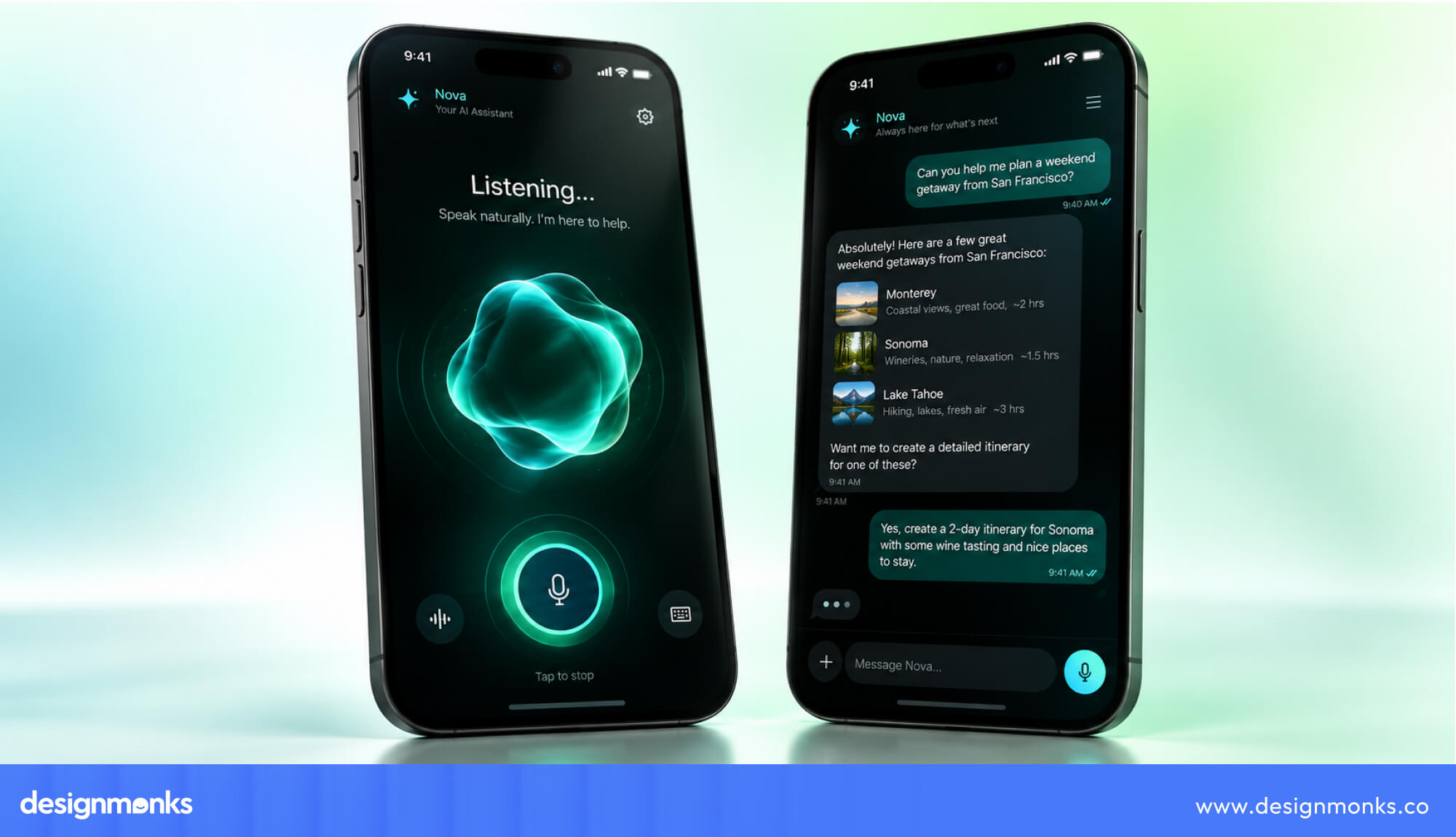
The Send Button should be easy to find and show when a message is ready. Depending on the product, the chat input may also support attachment upload, voice input, character limits, or other controls.
During processing, controls should clearly show whether the message is being sent, disabled, or generated.
Suggested Prompts & Quick Replies
A blank chat screen can leave users wondering, “Okay, what do I ask?” Suggested Prompts solve that problem by showing what the chatbot can actually do.
They work especially well for first-time users, complex tools, and task-based chatbots.

For example, a shopping assistant might suggest “Find running shoes” or “Compare two products.” A support chatbot could offer “Track my order” or “Start a return.” These conversation starters reduce guesswork and help users begin with less effort.
Typing, Loading & Streaming States
AI does not always respond instantly, and silence can make users wonder if their request went through. Typing Indicators and loading states provide feedback while the system works.

Modern AI interfaces often go a step further with Streaming Responses, where the answer appears gradually instead of waiting for the entire response. This makes long answers feel more responsive.
For longer answer generations, a Stop or Cancel control also gives users a way to stay in control.
Error, Empty & Fallback States
Even a smart chatbot will sometimes misunderstand a request, lack the right information, or run into a technical problem. Good Error States should explain what happened and offer a useful next step instead of leaving users stuck.

A chatbot might ask for clarification, suggest another prompt, or provide a Retry option. If AI cannot solve the issue, a Human Handoff like “I’m unable to resolve this. Would you like to speak with a support agent?” can move the conversation to a support agent.
These recovery patterns create a better fallback experience and make failure feel manageable rather than confusing.
Chatbot UI Examples & Design Inspiration
The best chatbot UI examples show how interface decisions can reduce friction, guide users, and strengthen the overall customer experience. Looking at real products also reveals an important point, there is no single chatbot interface that works for every business.
The right approach depends on whether you want users to explore, complete a task, get support, or take the next step:
AI Chatbot UI Examples
When users work with AI, the first response is rarely the final one. They may want to change the prompt, ask a follow-up, or try a different version. ChatGPT and Claude interfaces are built around this back-and-forth process.
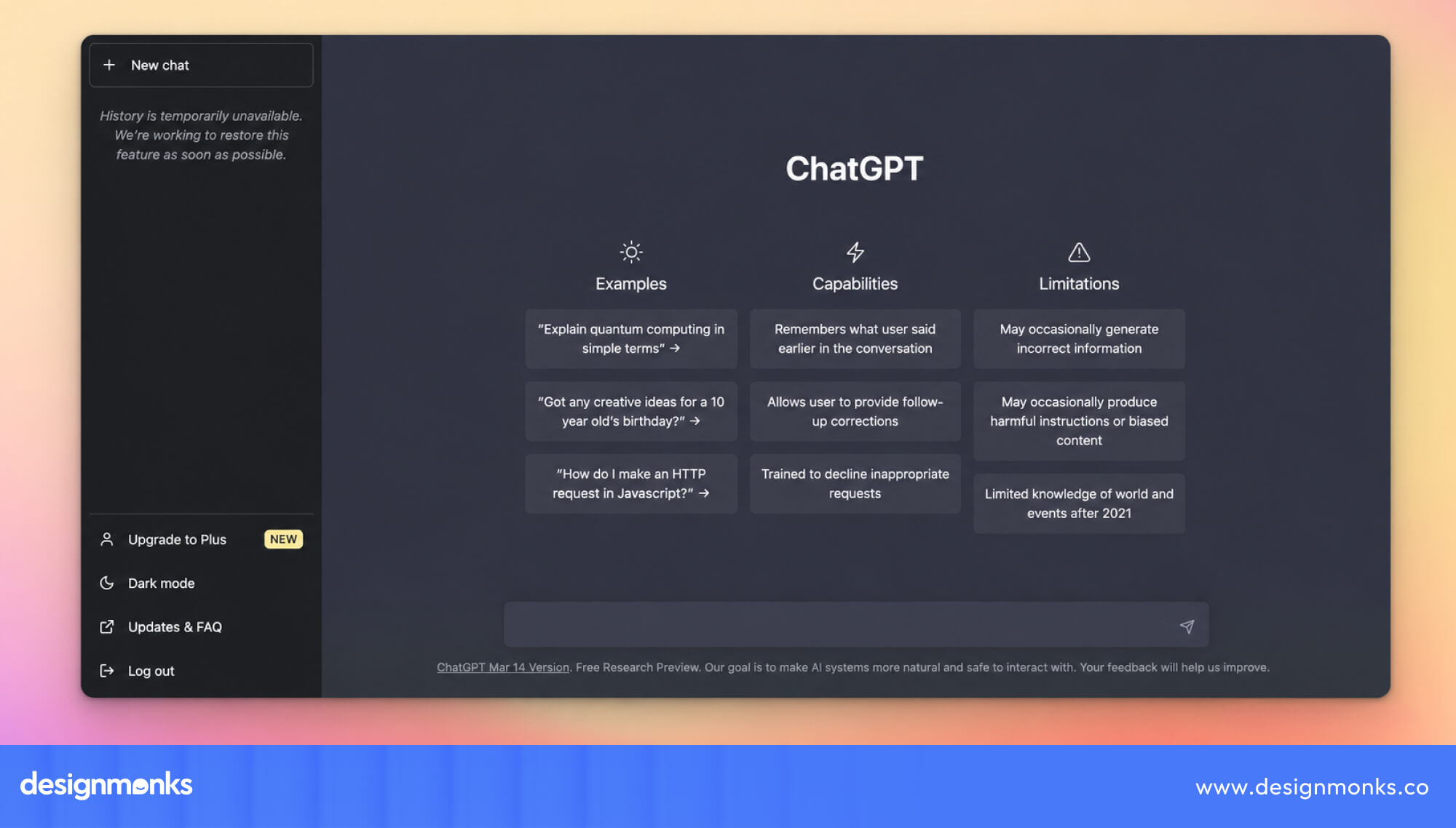
For example, a user might prompt ChatGPT with “Write a landing page headline for a SaaS product.” If the result feels too formal, they can follow up with “Make it more conversational” instead of starting a new chat.

This makes the interface well-suited to tasks where users need to work through several versions before reaching the desired result.
Why it works: The UI supports the way people actually use generative AI, prompt, review, refine, and repeat. The response is treated as something users can work with rather than a final answer.

Claude is another generative AI example, particularly for tasks involving longer prompts, documents, and detailed responses. Its interface keeps the conversation central while giving users space to provide substantial context. At the same time, it continues to work within the same thread.
For example, a user could give Claude a long product brief and ask, “Turn this into a five-section website structure.” They could then follow up with “Rewrite section three for a technical audience” while keeping the earlier context available.
Why it works: The interface supports context-heavy conversations without forcing users to restate the background each time. This is especially useful for research, writing, analysis, and other tasks that develop over multiple exchanges.
Customer Support Chatbot Examples
Zendesk is a great example of how a support chatbot can combine automated answers with access to human support. A customer might first receive a relevant knowledge-base answer and then have the option to contact an agent if the answer does not solve the problem.

For example, someone asking about a failed payment can receive troubleshooting steps first. If the issue continues, the chatbot moves the conversation toward an agent instead of repeatedly giving the same automated response.
Why it works: The chatbot has a clear limit. It tries to resolve common problems automatically but provides an escalation path when the issue requires human help.
Chatbot UI Design Patterns That Improve UX
Good Conversational UI is not just about making a chatbot look clean. It should help users understand, guide, and control their interaction with AI. The right AI interaction patterns make conversations easier to follow and reduce confusion.
The following patterns show how different parts of the interface can work together to create a smoother Conversational UI experience:
Capability Transparency
The first step is helping users understand what the AI Assistant can and cannot do. Clear guidance at the start sets expectations and helps users know how to interact with the chatbot.
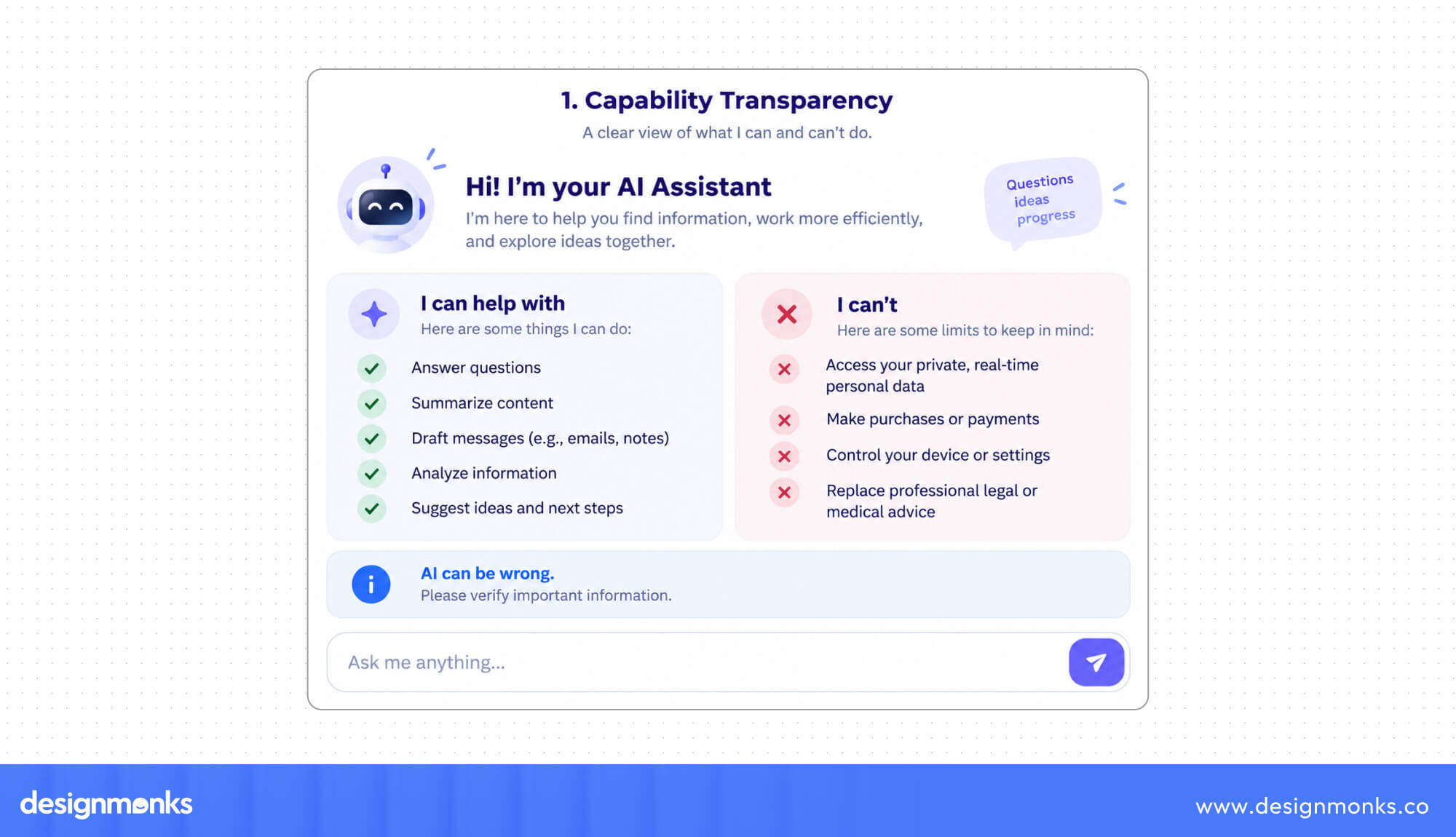
For example, a support chatbot might say, “I can help with orders, returns, and account questions,” followed by prompts such as “Track my order” or “Start a return.” This capability transparency gives users a clear starting point instead of making them guess what to ask.
Context & Conversation History
Once users know what the chatbot can do, the conversation should be able to continue without making them repeat themselves. Conversation history and context help the AI Assistant understand what has already been discussed and respond accordingly.

For example, a user might ask, “Find me a laptop under $1,000,” and then follow up with, “Which one has the best battery life?” The chatbot should understand what “which one” refers to.
Persistent chat history, search, and message editing can also make longer conversations easier to manage.
Regenerate, Edit & Follow-Up Actions
Keeping the conversation connected is important, but users also need control when a response is not quite right. This is where response controls such as regenerate, edit, retry, copy, and follow-up actions become useful.
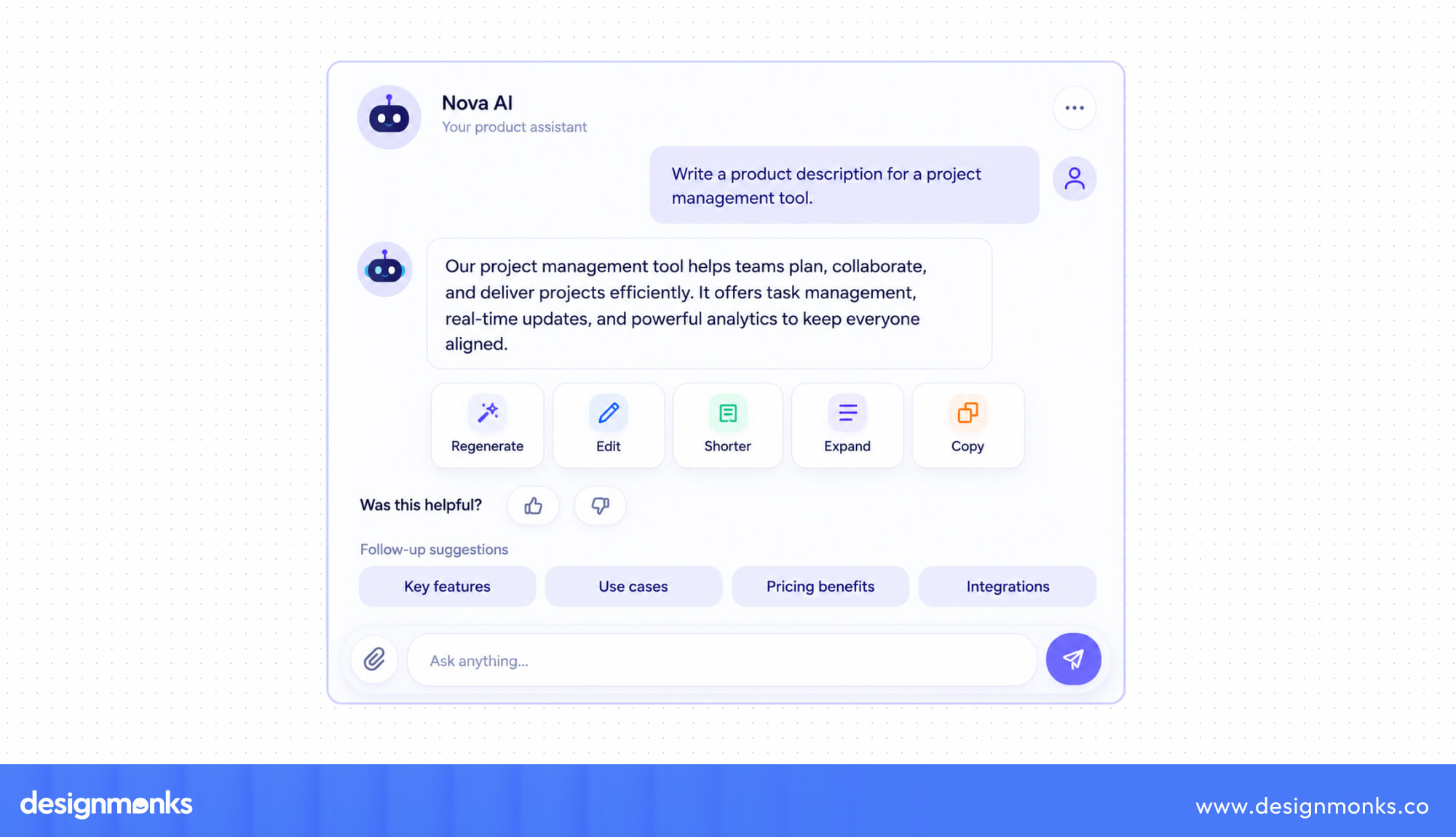
For example, after receiving a detailed answer, a user might select “Make it shorter” or edit their original prompt to provide more details. A regenerate option can also give them another response without starting over.
These controls make iterative interaction easier and let users shape the AI response to fit their needs.
Citations, Sources & AI Transparency
Giving users control over responses is only part of the experience. For answers that rely on external information, users may also need to understand where that information came from. Citations and sources can provide that extra layer of clarity.

For example, a research-focused AI Assistant could show source links below an answer or offer a “View sources” option for users who want to check the references.
Keeping these sources accessible without filling the chat with unnecessary details supports AI transparency while keeping the interface clean.
Chatbot UI Design Best Practices
Once core interaction patterns are in place, the next priority is making a chatbot easy and comfortable to use. Here's how you can do that:
Keep the Interface Simple & Scannable
Dense text blocks make a chatbot hard to use. Clear visual hierarchy, readable typography, spacing, and shorter sections reduce cognitive load and improve chatbot UX.
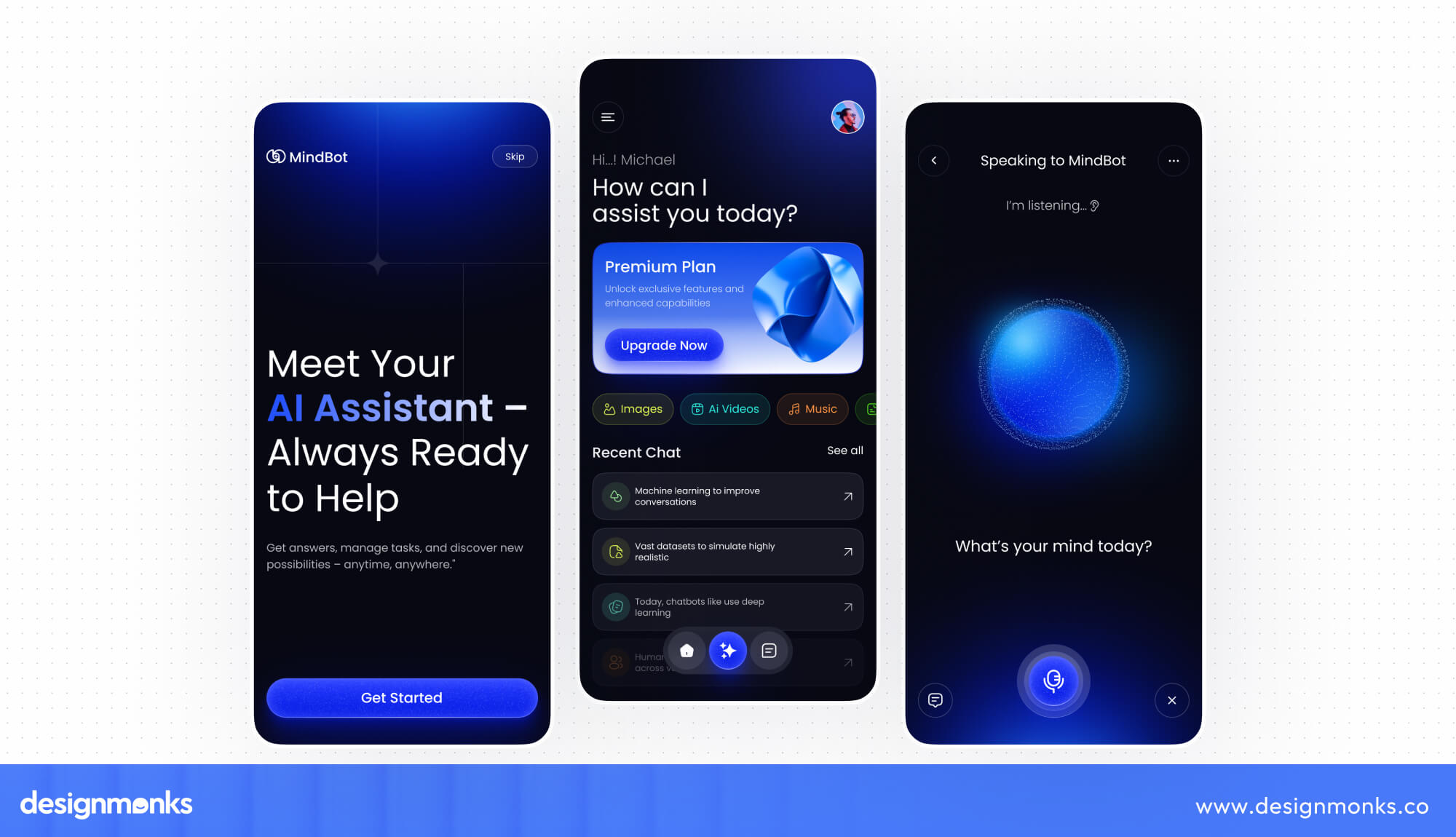
Instead of a long paragraph listing five recommendations, use a short intro plus headings and bullets. Tables work better for comparing options, progressive disclosure can hide extra detail until needed.
Design for Mobile & Accessibility
A simple interface should work just as well for people using different devices and ways of interacting with it.
A responsive chatbot should adapt to smaller screens, while an accessible chatbot should support keyboard navigation, screen readers, clear focus states, strong color contrast, and touch-friendly controls.

For example, buttons should be large enough to tap comfortably, focus states should make keyboard navigation visible, and new chatbot messages should be announced properly to screen-reader users.
Following WCAG guidance makes the experience more inclusive rather than treating accessibility as an afterthought. These details improve usability for many users, but accessibility alone does not determine whether people will trust the chatbot.
Build Trust Without Overdesigning the Chatbot
A chatbot does not need a complex interface to feel trustworthy. Users are more likely to trust an AI Assistant when it clearly identifies itself, explains what it can do, admits its limitations, and behaves in predictable ways.
For example, an AI assistant might say, “I can help summarize this document, but I cannot verify facts without reliable sources.”
If the response uses external information, then showing where that information came from can also make the experience more transparent. These small details support trustworthy AI without filling the interface with unnecessary warnings or visual elements.
How to Design a Chatbot UI Step by Step
A good chatbot design process starts with the user's needs, not the visual design. Plan the goal, map the conversation, build the interface, and test it before development. Here’s how you can approach each step:
Define the Chatbot's Goal & User Journey
Start with the user goals, business objective, target audience, and main chatbot use cases. Focus on the tasks that matter most instead of trying to support everything.
For example, an ecommerce chatbot may help users find products, answer product questions, and track orders. A simple journey could be: Find running shoes → Set budget → View options → Choose a product.
This gives you a clear task flow to design around.
Map Conversation Flows & States
Next, map what the chatbot should say and do at each step. Start with the happy path or ideal conversational flow. Then add what happens when users give unclear answers, change their request, or face an error.
For example: User asks a question → Chatbot responds → User asks a follow-up → Chatbot answers.
Also plan states such as loading, clarification, success, failure, retry, and human handoff. This ensures you design the full experience, not just the ideal conversation.
Create Wireframes & Prototype the Interface
Now turn the conversation flow into a wireframe, then a high-fidelity UI and interactive prototype:
Conversation Flow → Wireframe → High-Fidelity UI → Prototype
Use the wireframe to decide the placement of messages, input fields, buttons, suggested prompts, and other controls. Then use Figma to add the visual design and prototype key interactions. You can also take prototyping consultancy to make things easier.
After that test what happens when a user sends a message, selects a prompt, gets an error, or requests human support.
Test & Iterate the Chatbot UI
Finally, test whether users can complete their tasks easily. Watch for misunderstood prompts, repeated questions, unclear responses, unnecessary steps, abandonment, and failed recovery.
For example, if users keep rewording the same question, the chatbot may not understand their intent. If they leave after an error, the recovery flow may need improvement.
Use user feedback and analytics to find these problems, then update the flow or interface. The goal is simple that is to help users complete their tasks with less confusion and fewer unnecessary steps.
Common Chatbot UI Mistakes to Avoid
Even a well-planned chatbot can create a poor experience when the interface gets in the user's way. Here are some common mistakes to avoid:
- Overcomplicating the Interface: Showing too many buttons, prompts, cards, or menus can increase cognitive load and make it unclear where users should start.
- Giving Users No Recovery Options: Responses like “I don't understand” without clarification, retry, or alternative options can leave users stuck.
- Hiding Important Actions Inside Chat: Making users type commands for simple actions can create unnecessary effort when a button, form, or menu would be faster.
- Forcing Every Task Into a Conversation: Not every interaction needs chat, so use familiar UI controls when they make specific tasks faster and clearer.
- Ignoring Loading and Error States: Without clear feedback while the chatbot is processing or when something goes wrong, users may think the interface is broken.
- Making the Chatbot Too Verbose: Long, unstructured responses can make important information difficult to scan, especially on mobile devices.
- Skipping Human Handoff: When a chatbot cannot solve a complex or sensitive issue, users should have an easy way to reach a human agent.
When Should You Not Use a Chatbot UI?
Chatbots are useful when users need to ask questions, explore options, or describe a problem in their own words. But when the task already has a clear structure, conversation can add unnecessary steps.
Choosing the right interface is about task efficiency, not simply using AI everywhere.
For example, use a Form UI when users need to enter specific information such as payment or contact details. Use a table when they need to compare several products or plans at once.
A Dashboard UI is better for monitoring metrics because users can see important information immediately instead of asking for each update. Similarly, search works best when users know exactly what they want, while menus are faster for predictable navigation.
For repetitive tasks, a traditional workflow can also be easier because users can follow familiar steps without explaining the same request repeatedly.
The smartest approach is often a hybrid interface. Use chat where conversation adds flexibility, and traditional UI where it makes the task faster and clearer.
Chatbot UI Trends to Watch in 2026
Chatbot UI is moving from simple conversation toward interfaces that understand intent, manage tasks, and adapt to users. These are some of the UI design trends worth watching in 2026:
- Chat Interfaces Becoming More Visual: AI responses will rely less on plain text and more on cards, charts, product previews, interactive results, and other visual formats.
- Less Chat, More Direct Manipulation: Users will increasingly edit, select, drag, approve, and adjust AI-generated results directly instead of describing every change through another prompt.
- Chat Moving Into Existing Products: Rather than living in a separate chatbot window, conversational features will appear directly inside tools where users already work, such as editors, dashboards, CRMs, and project platforms.
- AI Interfaces With Clearer Control: As AI becomes capable of taking more actions, interfaces will put greater emphasis on permissions, approvals, undo options, and visibility into what the AI is doing.
- More Flexible Conversation Layouts: Chat interfaces will move beyond the standard message-bubble format, using layouts that change depending on whether the user is asking, comparing, creating, reviewing, or completing a task.
- Designing for AI Mistakes: Interfaces will increasingly make it easier to spot, correct, and recover from incorrect AI responses rather than assuming every output is reliable.
FAQs
How much does it cost to design a chatbot UI?
A chatbot UI can cost around $2,000–$10,000+ for professional design, depending on the number of flows, screens, states, integrations, research, and customization required. A basic chatbot may fall toward the lower end, while a complex AI product with advanced workflows and interactions can cost significantly more.
What should a chatbot UI include?
A chatbot UI typically includes a chat window, message area, input field, suggested prompts, and loading and error states. It also has conversation history, response controls, and action elements such as buttons or cards.
What is the difference between a chatbot UI and a conversational UI?
A chatbot UI is the interface built specifically for interacting with a chatbot, while Conversational UI is a broader approach to designing interactions around natural language. A chatbot UI can include conversational elements alongside buttons, cards, forms, and other controls.
Conclusion
A great Chatbot UI does more than make AI conversations look good. It helps users understand what the chatbot can do, guides them through tasks, and gives them control when things do not go as planned.
From conversation flows to response states and interactive actions, every detail matters.
If you need help turning your AI idea into a clear, user-friendly experience, Design Monks can help with research, UX strategy, UI design, and prototyping to build a chatbot users will actually enjoy using.


.avif)
.avif)
.avif)
.avif)


.avif)
.avif)
.avif)
.avif)








.avif)