.svg)


Key Takeaways
- Good VR UX combines usability, immersion, comfort, and emotional engagement for better experiences.
- Natural interactions, clear feedback, and readable interfaces help users navigate virtual environments confidently.
- Multiple movement options and comfortable positioning help reduce motion sickness and physical strain.
- User research and real-world testing reveal usability issues before VR experiences reach users.
- VR UX evaluation combines task performance, user feedback, presence, and comfort measurements.
What if exploring a virtual world felt as easy as moving around your own room? That is the goal of good UX of VR. It helps people understand where they are, what they can do, and how to interact with the digital world around them without feeling confused or uncomfortable.
Virtual reality gives users a sense of being inside a computer-created environment. But realistic graphics alone cannot make an experience great. Clear controls, natural movement, helpful feedback, and user comfort matter just as much.
For designers, the challenge is to make every action feel clear and easy. Let’s look at how thoughtful VR design can turn a confusing virtual space into an enjoyable experience.
What Is UX in Virtual Reality?
UX in virtual reality (VR) is about making virtual worlds easy, comfortable, and enjoyable to use. It focuses on how people move around, use menus, pick up objects, and feel inside a virtual space. It also covers how users learn to use the system and understand what to do next.
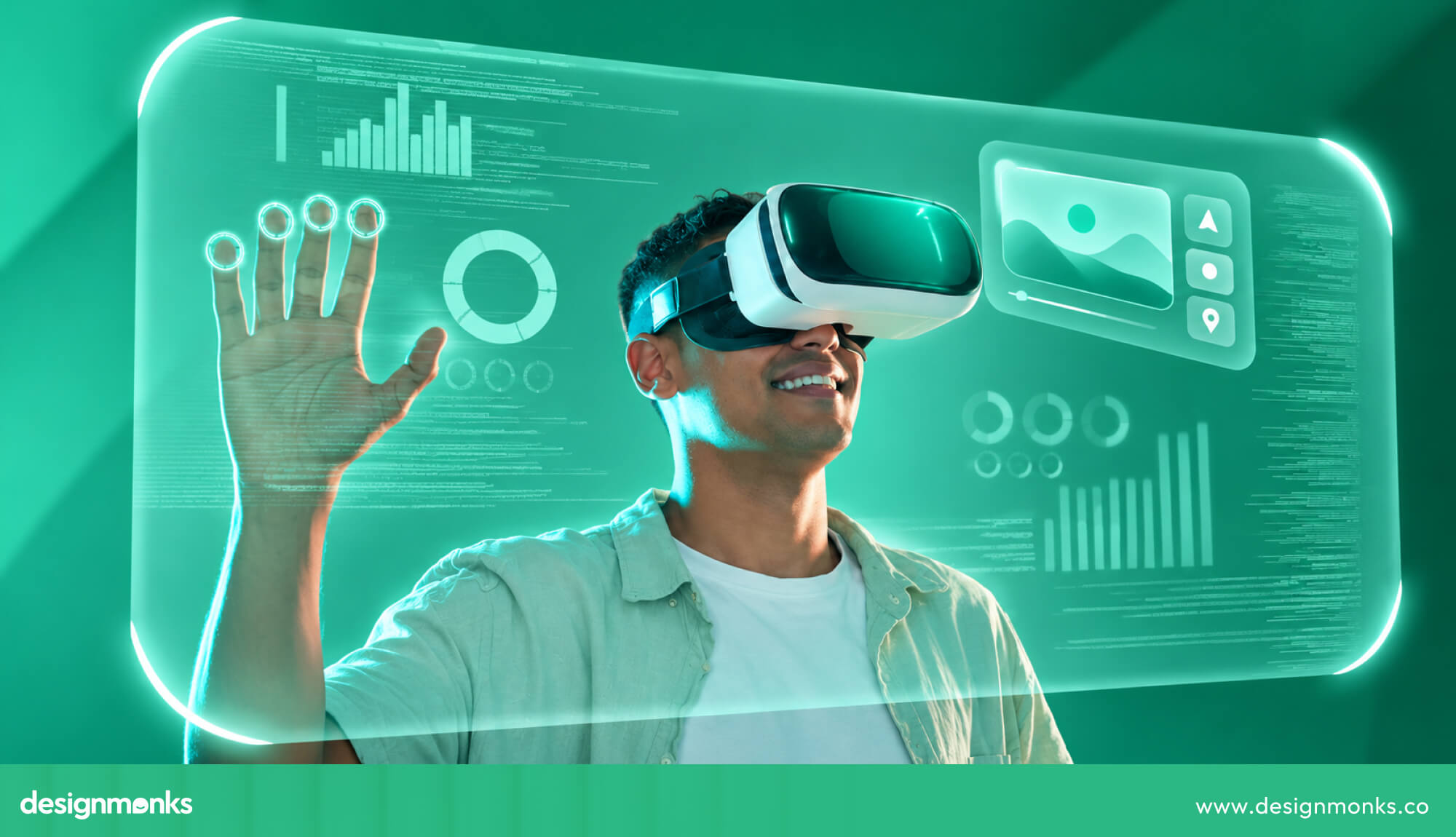
Along with screen design, VR UX has a few extra things to consider:
- Immersion: How much the virtual world surrounds the user through images and sounds.
- Presence: The feeling of actually being inside the virtual world.
- 3D interaction: How users reach for, touch, or select objects at different distances.
- Physical movement: How users turn their heads, move their arms, lean, or walk in VR.
Since users move their bodies in VR, poor design can cause neck pain, tired arms, eye strain, or nausea. That is why designers must consider ease of use, body comfort, and how people see and understand their surroundings.
How VR UX Differs From Traditional UX
Traditional UX focuses on a screen where users click, tap, or type. Designers arrange buttons, menus, and other elements within a fixed space.
VR works differently because users can look in any direction. Content can appear in front of them, above them, or behind them. Objects that are too close may feel uncomfortable, while objects that are too far away can be hard to see or reach.
Users can interact through head movements, hand gestures, controllers, or voice commands. Designers also cannot control where users look at every moment. Good VR design uses clear signs, sounds, and object placement to guide attention without forcing users to look in one direction.
Why UX Matters in VR?
In a regular app, a confusing button may waste a few seconds. In VR, a poorly designed interaction can make users lose their balance, feel sick, or struggle to understand where they are.
For example, if the virtual world moves suddenly while the user's body stays still, it can cause dizziness or nausea. These problems can make users remove their headsets before finishing the experience.
Good VR UX helps prevent these issues by making controls easy to understand, movements comfortable, and interactions predictable. When users can move around without confusion or discomfort, they can focus on what they came to do, whether that means learning a new skill, exploring a virtual place, or playing a game.
Key Elements of a Good VR User Experience
A good VR experience needs more than attractive graphics. It should be easy to use, feel believable, keep users comfortable, and create the right emotions. The following elements work together to make virtual experiences enjoyable:
Usability
Usability means how easy a product is to learn and use. In VR, users should be able to understand the controls, complete tasks, and avoid common mistakes without much effort. Good VR usability includes:
- Learnability: Can new users understand how to use the system quickly?
- Efficiency: Can users complete tasks without taking unnecessary steps?
- Effectiveness: Do actions work as users expect?
- Error prevention: Does the design help users avoid mistakes or correct them easily?
- Ease of interaction: Can users select or pick up objects without difficulty?
Many people are new to VR, so simple instructions are important. For example, a short tutorial that lets users practice picking up and pointing at objects is more helpful than a long page of written instructions.
Immersion and Sense of Presence
Immersion means how much the VR system surrounds users with images and sounds. Presence is the feeling of actually being inside that virtual world.
Several things help create this feeling. Objects should respond when users touch or move them. Sounds should come from the right direction, and virtual hands should move as users expect. When everything works together, the experience feels more natural.
Small problems can break this feeling. For example, an object that does not respond when touched or hands that move incorrectly can remind users that they are in a computer-made world.
VR does not need realistic graphics to feel believable. Even a simple, cartoon-style world can feel real if objects behave in a consistent and expected way.
Comfort and Physical Ease
Comfort is a major part of VR UX. Users may need to turn their heads, reach for objects, or stand for long periods. Poor design can cause tired arms, neck pain, dizziness, and various other pain points for users.
Designers should keep important objects within a comfortable viewing and reaching area. Users should not need to turn their heads too often or hold their arms up for a long time. Sudden camera movements should also be avoided because they can make some users feel sick.
Offering both seated and standing options can make VR easier for more people to use. The goal is to let users interact naturally without putting too much strain on their bodies.
Emotional Engagement
VR can make people feel strong emotions because they feel surrounded by the experience. Standing near the edge of a virtual cliff may create fear, while an interactive story can help users understand what another person is going through.
Designers can shape these feelings through stories, sounds, lighting, colors, and user actions. For example, soft lighting and gentle sounds may create a calm setting, while sudden sounds and dark spaces may create tension.
The key is to match the experience to its purpose. A VR learning app should help users stay focused, while a VR game may aim to create excitement. Good UX makes these experiences engaging without making users feel uncomfortable.
VR UX Design Principles
Designing for VR requires more than placing buttons and menus in a virtual world. Users need to understand how to interact with objects, where to look, and how to move without feeling confused or uncomfortable. The following principles can help designers create VR experiences that feel natural and easy to use:
Design for Spatial Interaction
In VR, buttons, menus, and objects exist in a 3D space. Their size, distance, and position affect how easily users can see and reach them.
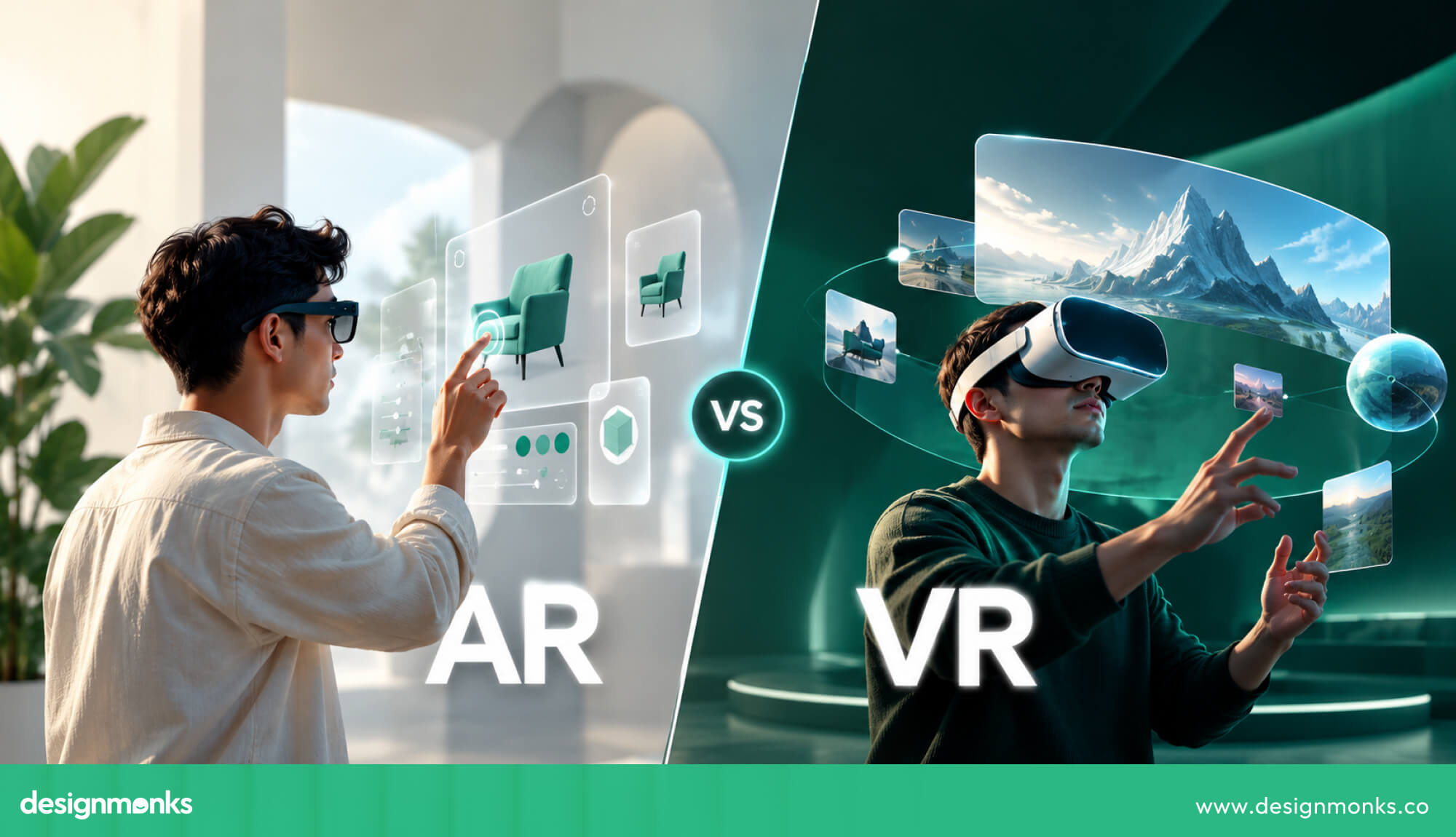
Place interactive objects within a comfortable reaching distance and keep important information easy to see. Also, consider whether users are sitting, standing, or turning around.
For example, a menu should not be so far away that users need to stretch to reach it. Letting users move a menu closer can make interactions much easier.
Keep Interactions Natural and Intuitive
Once objects are placed comfortably, users need a simple way to interact with them. The best approach is often to use actions people already know, such as grabbing, pushing, pulling, and pressing.
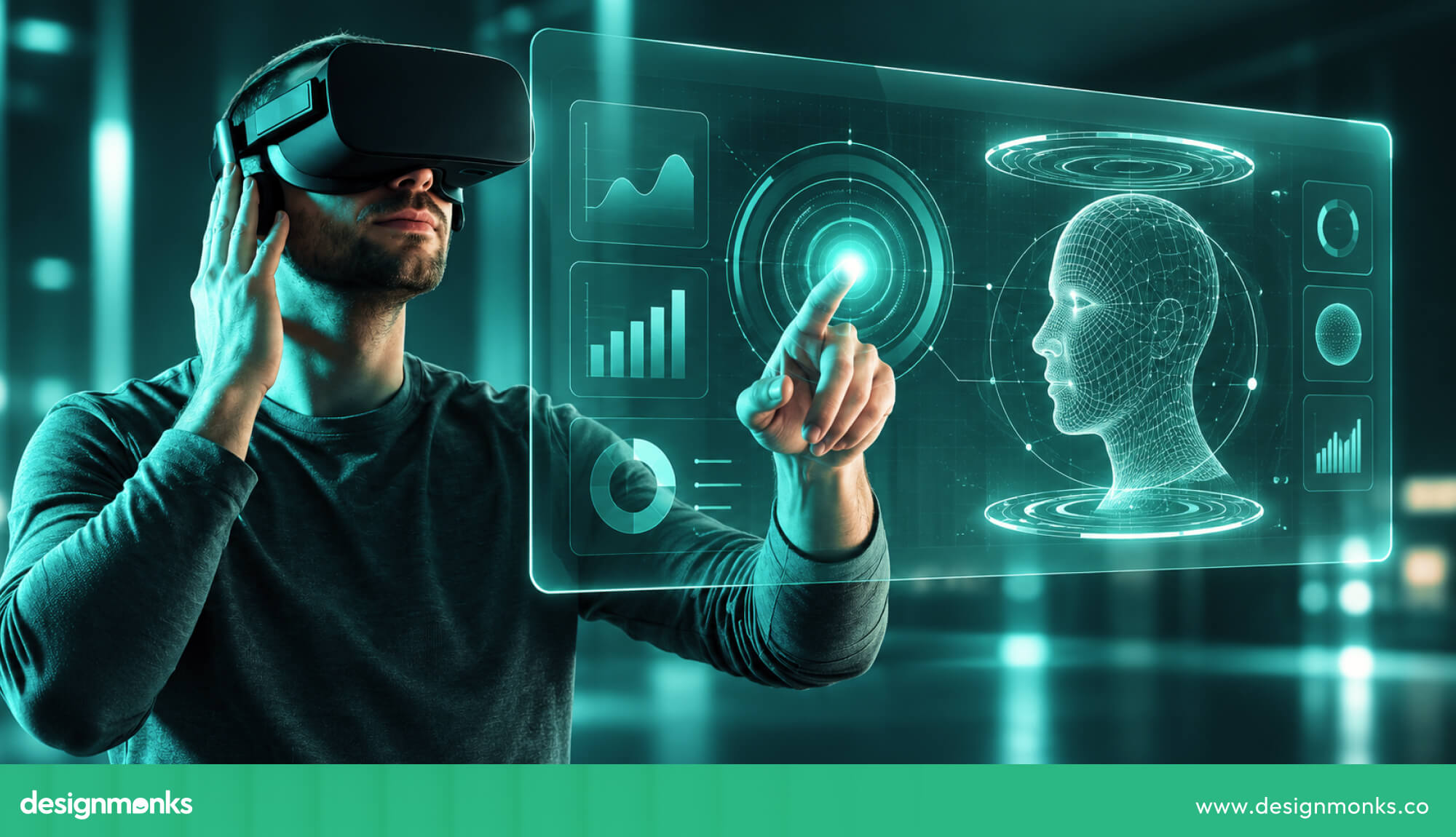
For example, users should be able to grab a virtual cup with their hands rather than learn a complicated set of controls. Keep similar actions consistent throughout the experience.
If one type of button works in a certain way, users should not have to learn a completely different method for another button.
Provide Clear Visual and Audio Feedback
Natural controls help users understand what to do, but they also need to know whether their actions have worked. In VR, a button click or mouse pointer may not be available to provide that information. Designers must use other signals.
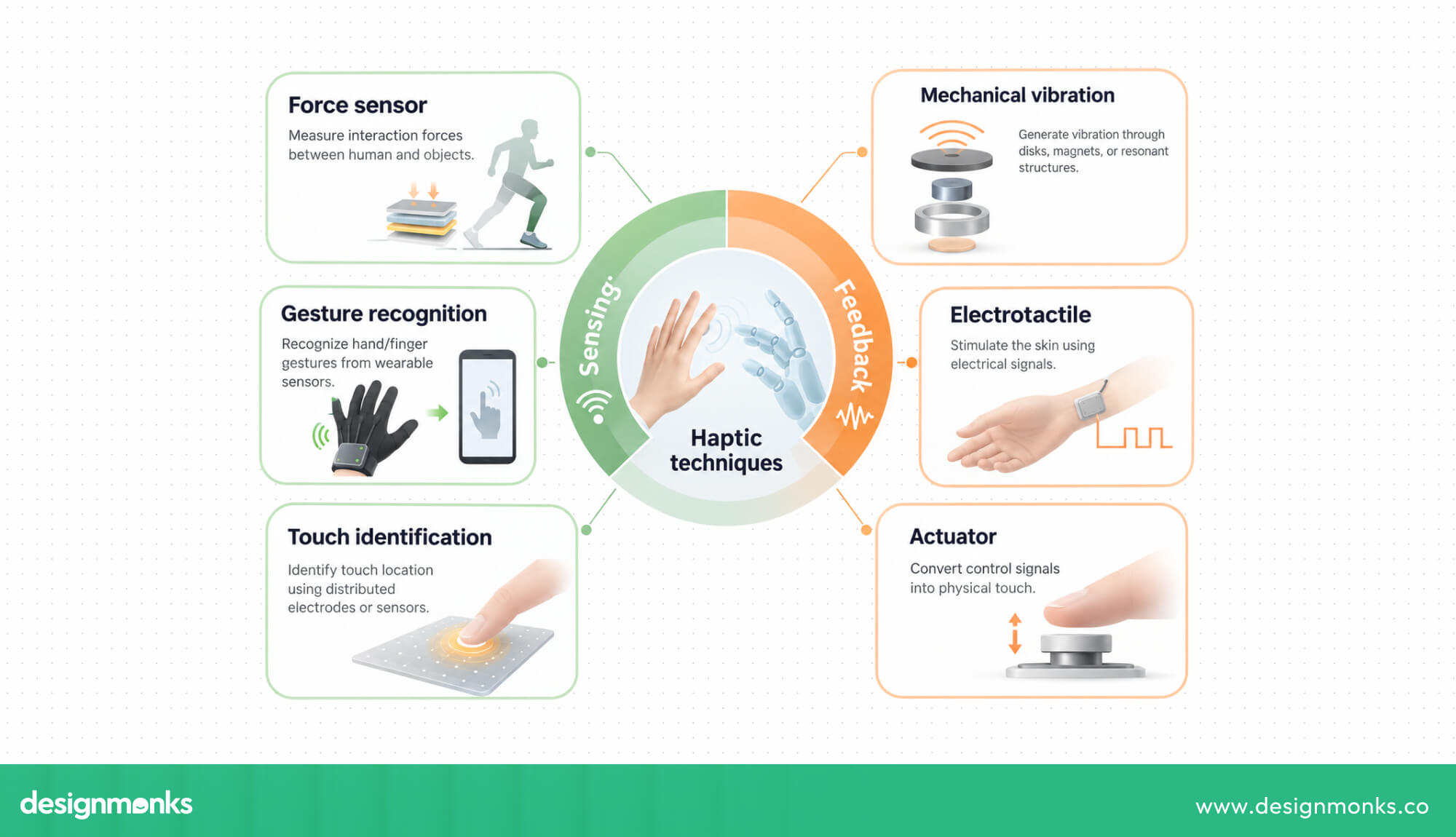
They can use signals like:
- When approaching an object: Highlight it to show that it can be selected.
- When selecting an object: Change its appearance to show that it has been picked up or chosen.
- When completing an action: Play a sound, show an animation, or use controller vibration to confirm success.
- When an action is unavailable: Show a clear sign that explains the problem.
These signals help users understand what is happening without guessing. Once users receive clear feedback, they can interact with the virtual world more confidently.
Keep Important Content Within the Field of View
Clear feedback is useful only when users can see or notice it. That is why designers must think carefully about where information appears.
The field of view is the area a person can see without turning their head. Place important menus, instructions, and controls where users can find them easily. If users constantly need to look far up, down, or behind them, the experience can quickly become tiring.
Less important information can appear to the side, with a gentle sound or visual cue to attract attention when needed. This helps users find what they need without making too many head movements.
Reduce Cognitive Load
Even when everything is easy to see, a VR experience can feel confusing if it shows too much information at once. Users are already processing their surroundings, body movements, sounds, and objects in three dimensions.
To make things easier, show only the options users need at each step. Group related controls together, use simple words, and introduce advanced features gradually. For example, a VR training app can teach users one action at a time rather than showing every control on the first screen.
These principles help make VR experiences easier to understand. The next step is applying them to the actual interface, including menus, buttons, text, and navigation.
How to Design VR Interfaces and Spatial UI
A spatial user interface (spatial UI) is an interface where menus, buttons, and other controls appear within a 3D environment. Designers can use familiar flat panels or create controls that users can interact with as if they were physical objects.
The right choice depends on what users need to do:
2D Panels vs 3D Interfaces
Flat panels, or floating 2D panels, work well for tasks that involve reading information, choosing options, or filling out forms. They work well for settings menus, lists, and video controls because users already understand how these elements work.
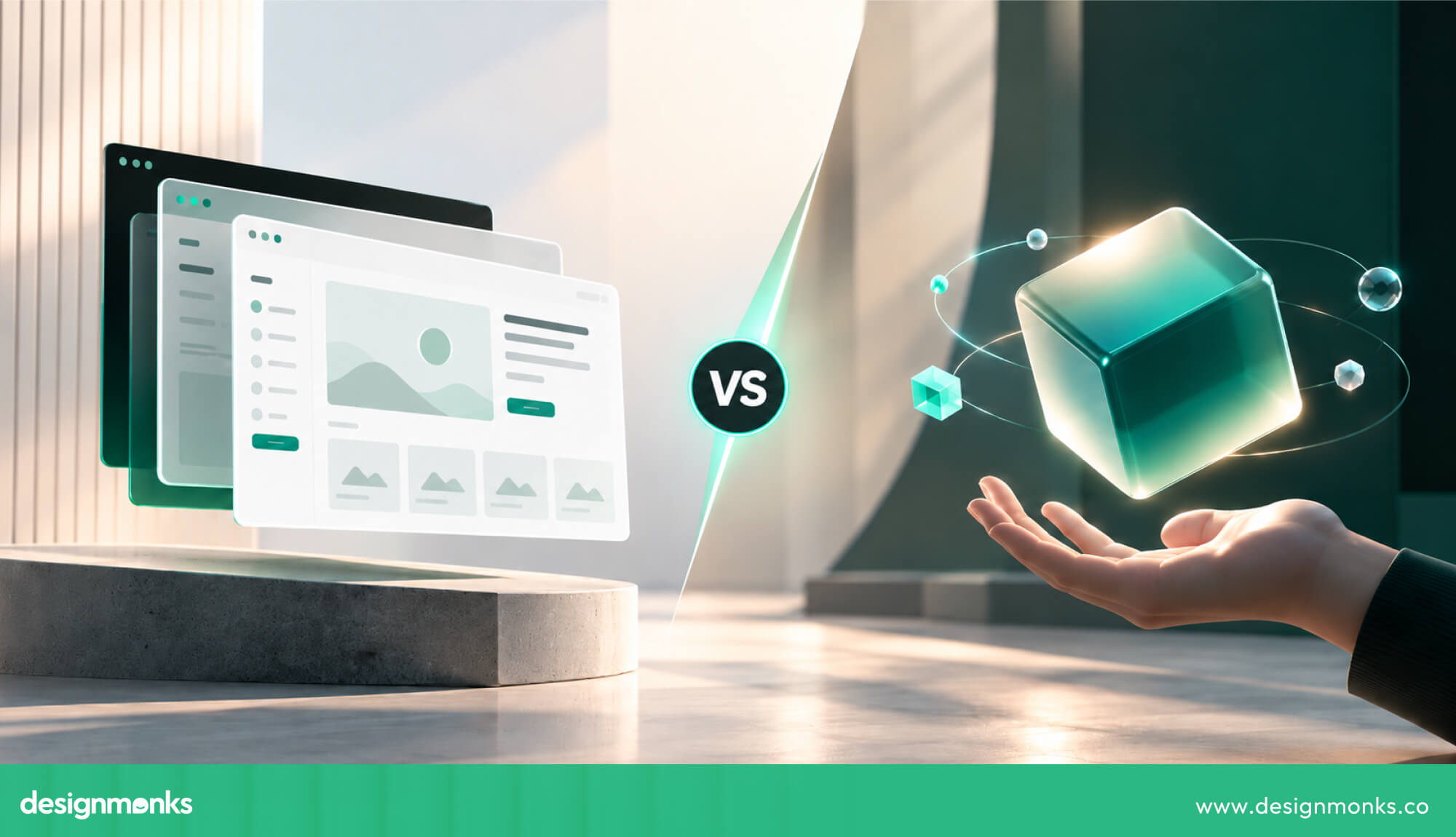
Three-dimensional controls are useful when users need to interact with objects directly. For example, someone learning to operate a virtual machine may need to turn a dial, pull a lever, or press a physical-looking button.
The choice depends on the task. Use flat or 2D panels when users need to read or select information. Use 3D objects when they need to practice physical actions or handle objects in the virtual world.
Spatial Layout and UI Positioning
After choosing the user interface type, decide where it should appear. Menus that are too close can feel uncomfortable, while those placed too far away can be difficult to read or reach.
As a starting point, place the main interface around one to two meters away, then adjust it based on the task and user testing. Position it slightly below eye level when appropriate, so users can look at it naturally.
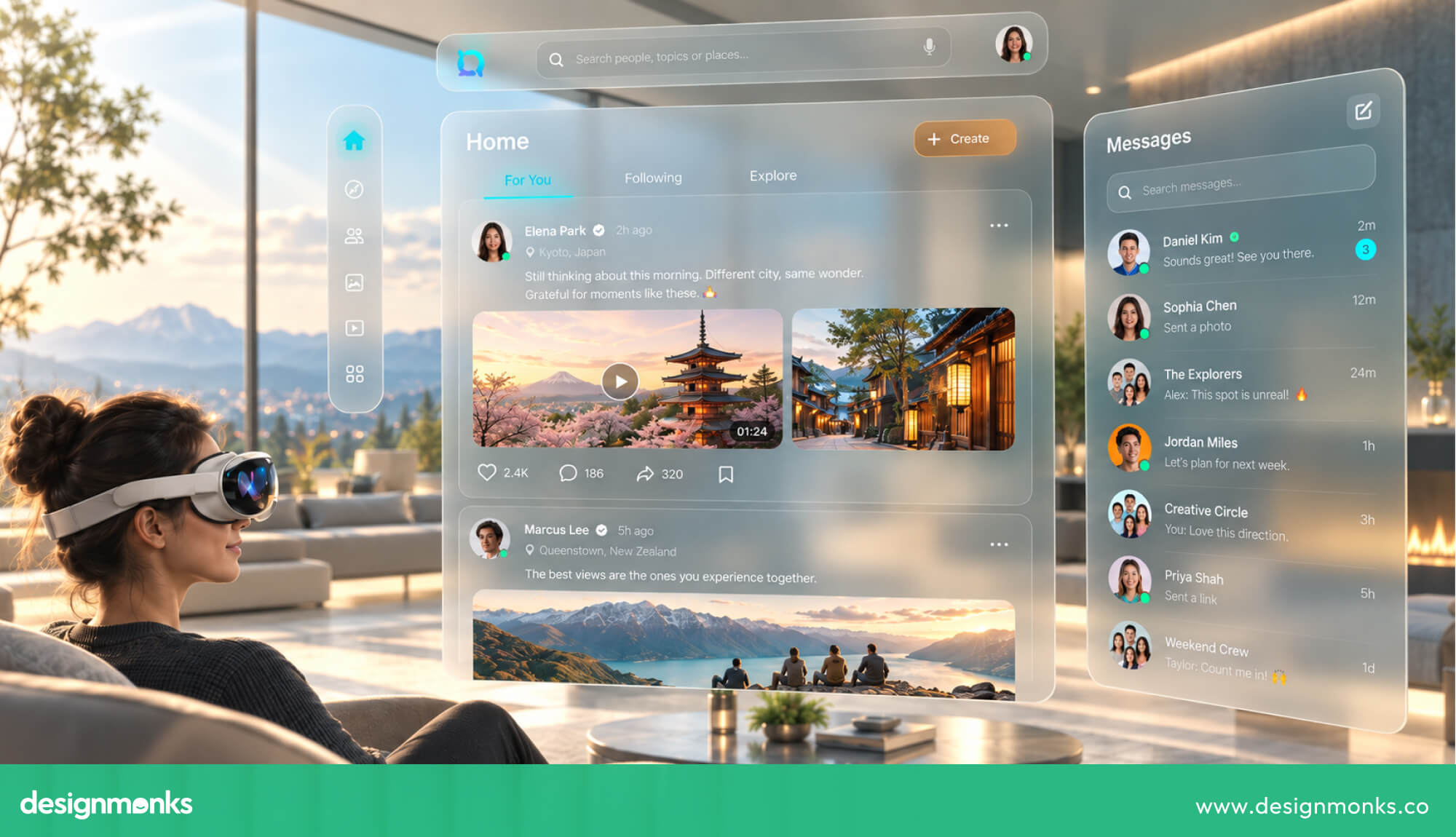
You can also use distance to separate important information from less important details. Curved panels may make wide menus easier to view, while allowing users to reposition a panel can help them find a comfortable setup. Different usability design heuristics can also make VR interfaces easier to understand, navigate, and use comfortably.
Designing Buttons and Interaction Targets
Even a well-placed menu can be frustrating if its buttons are too small. In VR, users may point with a controller, reach with their hands, or select items with their eyes. These actions are not always perfectly accurate.
Make buttons large enough to select easily and leave enough space between them to prevent accidental choices. You can also make the clickable area slightly larger than the visible button.
For important actions, such as deleting work or leaving a session, ask users to confirm before continuing.
Typography and Readability in VR
Button placement and menus are only useful when people can read them. Text inside a VR headset may look less sharp than text on a phone or computer, so small letters and thin fonts can be difficult to read.
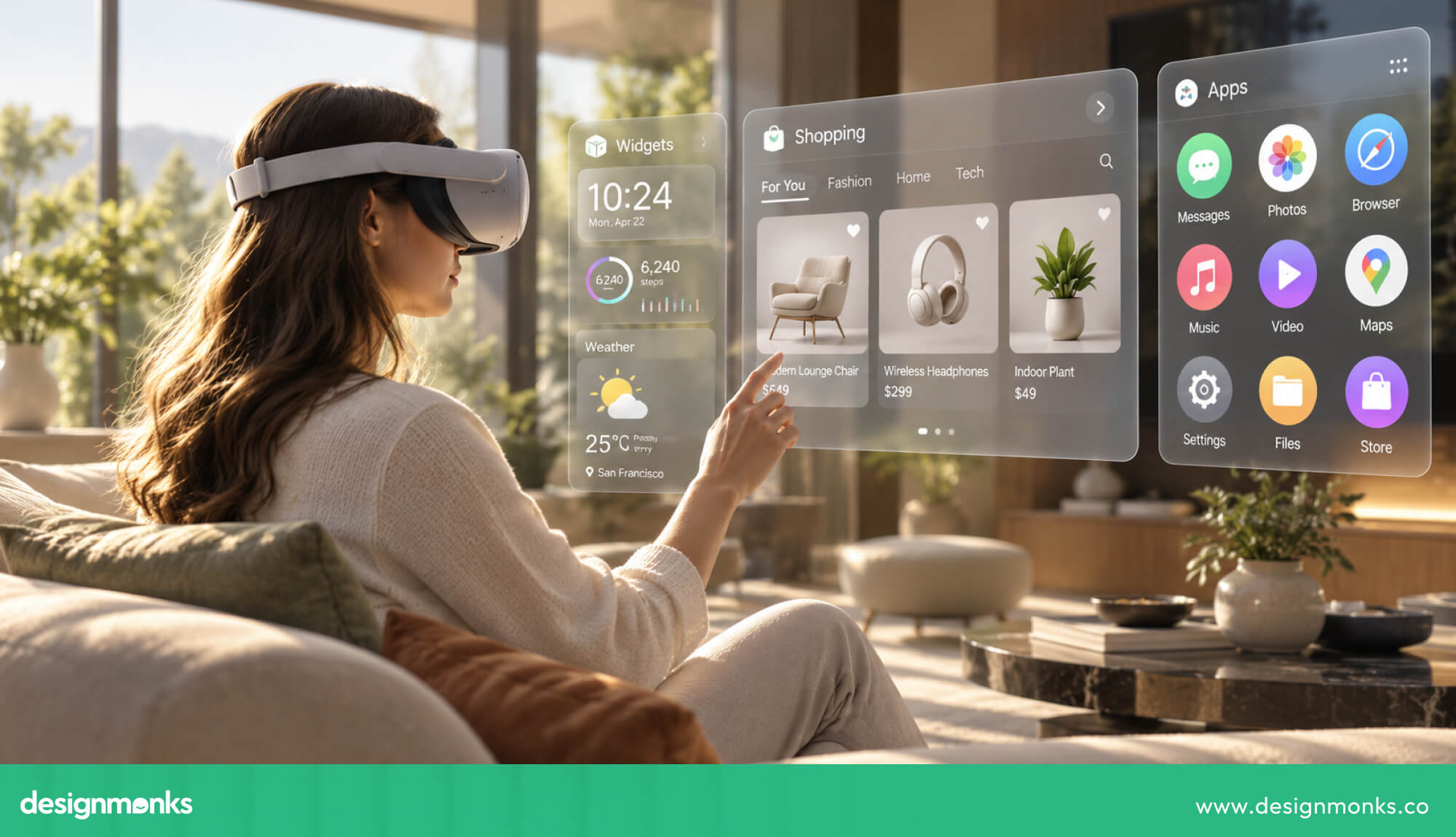
Use large, clear fonts, strong contrast between text and background, and short sentences. Avoid long paragraphs and busy backgrounds that make words harder to see.
For example, a short instruction such as “Grab the handle to open the door” is easier to follow than a long explanation.
Navigation in 3D Spaces
Readable menus and clear buttons help users complete individual tasks, but they also need to know where to go next. In VR, users cannot rely on familiar website features like browser tabs or a navigation bar at the top of the screen.
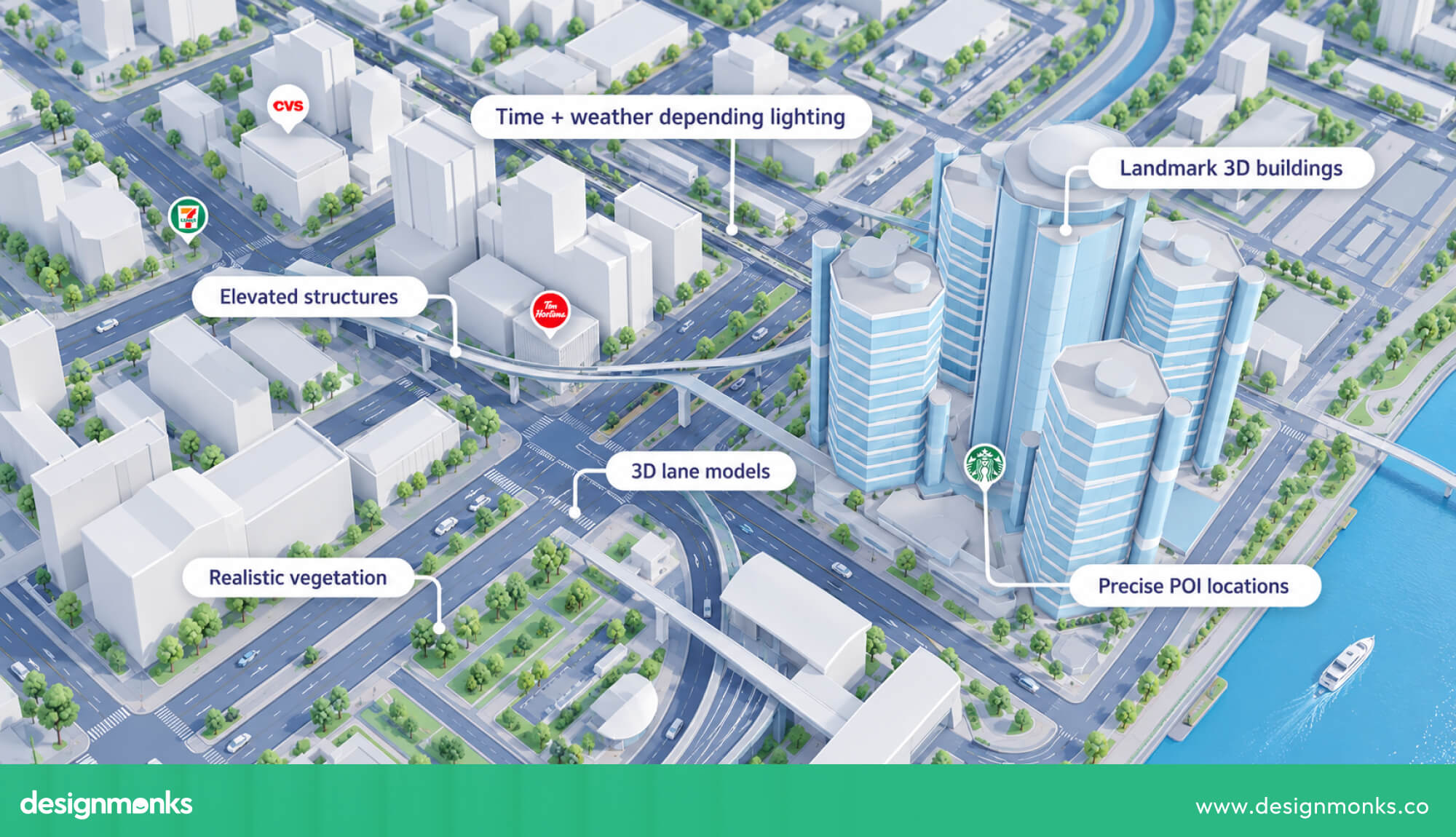
Designers can make navigation easier by using:
- Consistent menus: Keep the main menu in a familiar place or let users open it with the same controller button at any time.
- Landmarks: Use memorable objects or locations to help users recognize where they are.
- Signs and spatial audio: Use visual signs or sounds that seem to come from a particular direction to guide users.
- Clear transitions: Make it obvious when users move from one room, activity, or scene to another.
- Mini-maps or overview views: Give users a simple map when exploring a large virtual environment.
Most importantly, users should always have a clear way to return to a familiar starting point. When people know where they are and how to get where they want to go, they can explore the virtual world with greater confidence.
VR Interaction Methods
Users can interact with virtual reality in several ways, including hand movements, controllers, eye movements, and voice commands. Each method has its own benefits and challenges.
The best choice depends on what users need to do, how comfortable they feel, and where they are using VR:
Hand Tracking and Gestures
Hand tracking allows users to interact with virtual objects using their bare hands instead of controllers. They can pinch their fingers to select an item, grab an object, or push a virtual button.
This approach feels natural because people already know how to use their hands. However, users may find it difficult to select small objects without physical buttons to guide their fingers. Holding their arms up for too long can also cause tiredness, sometimes called gorilla arm.
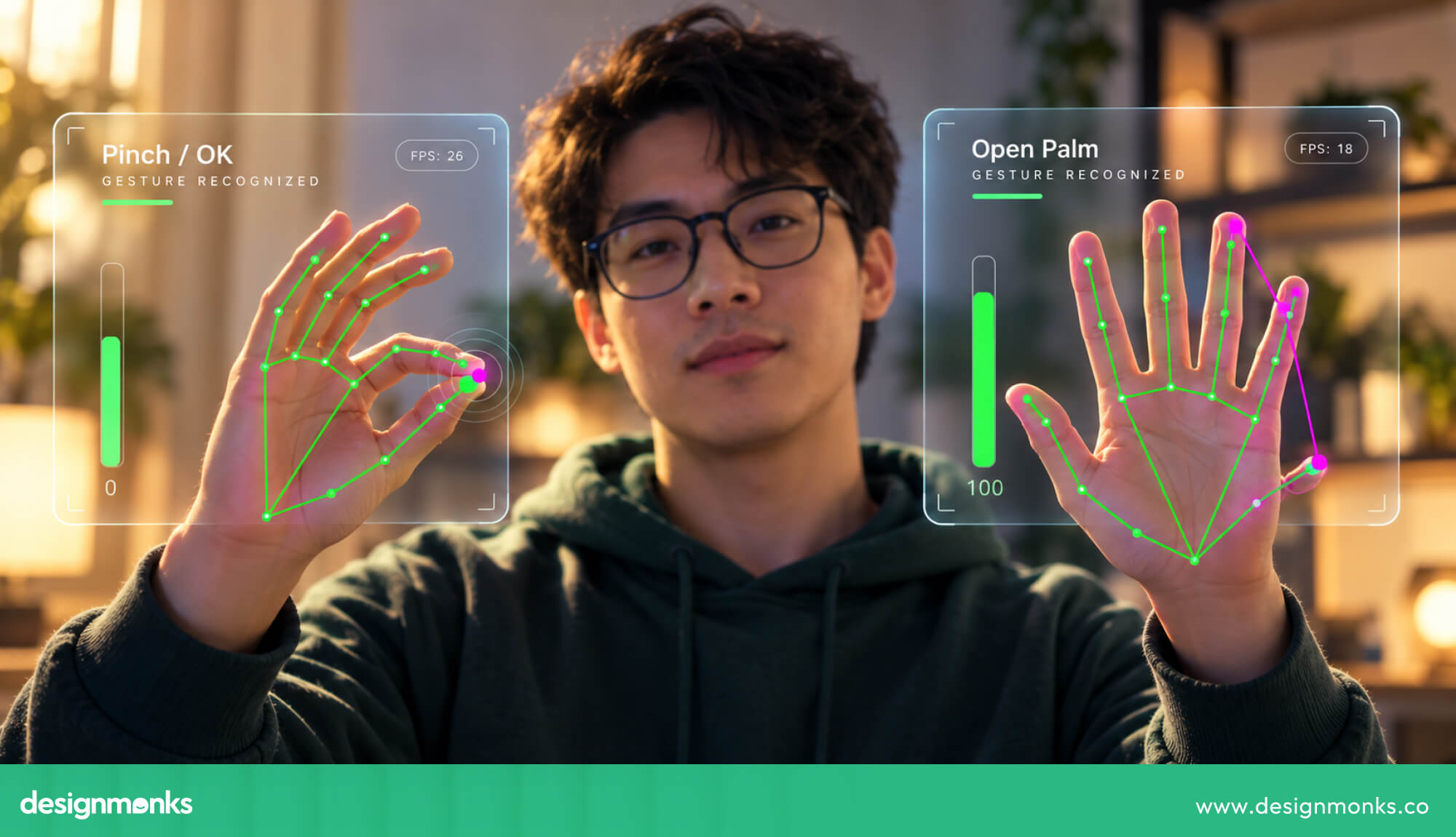
To make hand tracking easier, use simple gestures, provide clear visual feedback, and let users keep their arms in a relaxed position. Avoid gestures that require too much effort or are easy to mistake for ordinary movements.
Motion Controllers
Motion controllers are handheld devices that let users interact with virtual objects through buttons, triggers, and thumbsticks. Many also provide vibration to confirm an action, such as picking up an object or firing a virtual tool.
Controllers can offer more precise control than hand gestures. This makes them useful for VR games, training activities, and tasks that require accurate movements.
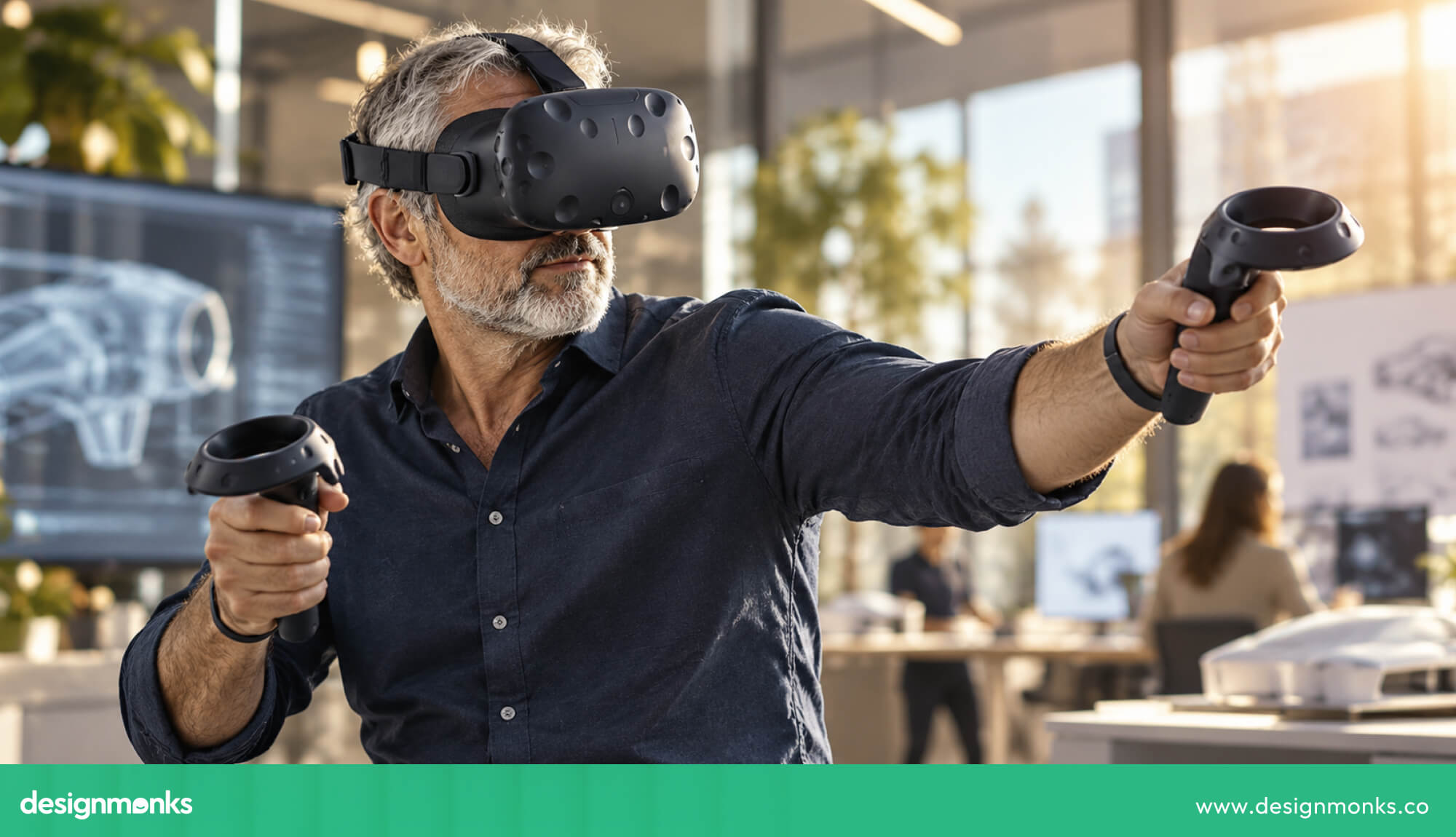
However, users need time to learn which buttons perform which actions. Keep controls consistent throughout the experience and use vibration or visual signals to confirm important actions.
This helps users understand what they are doing without having to remember too many controls.
Gaze and Eye Tracking
Gaze-based interaction lets users select items by looking at them. Some systems track head direction, while others track eye movements. Users can confirm selections with a button press or hand gesture.
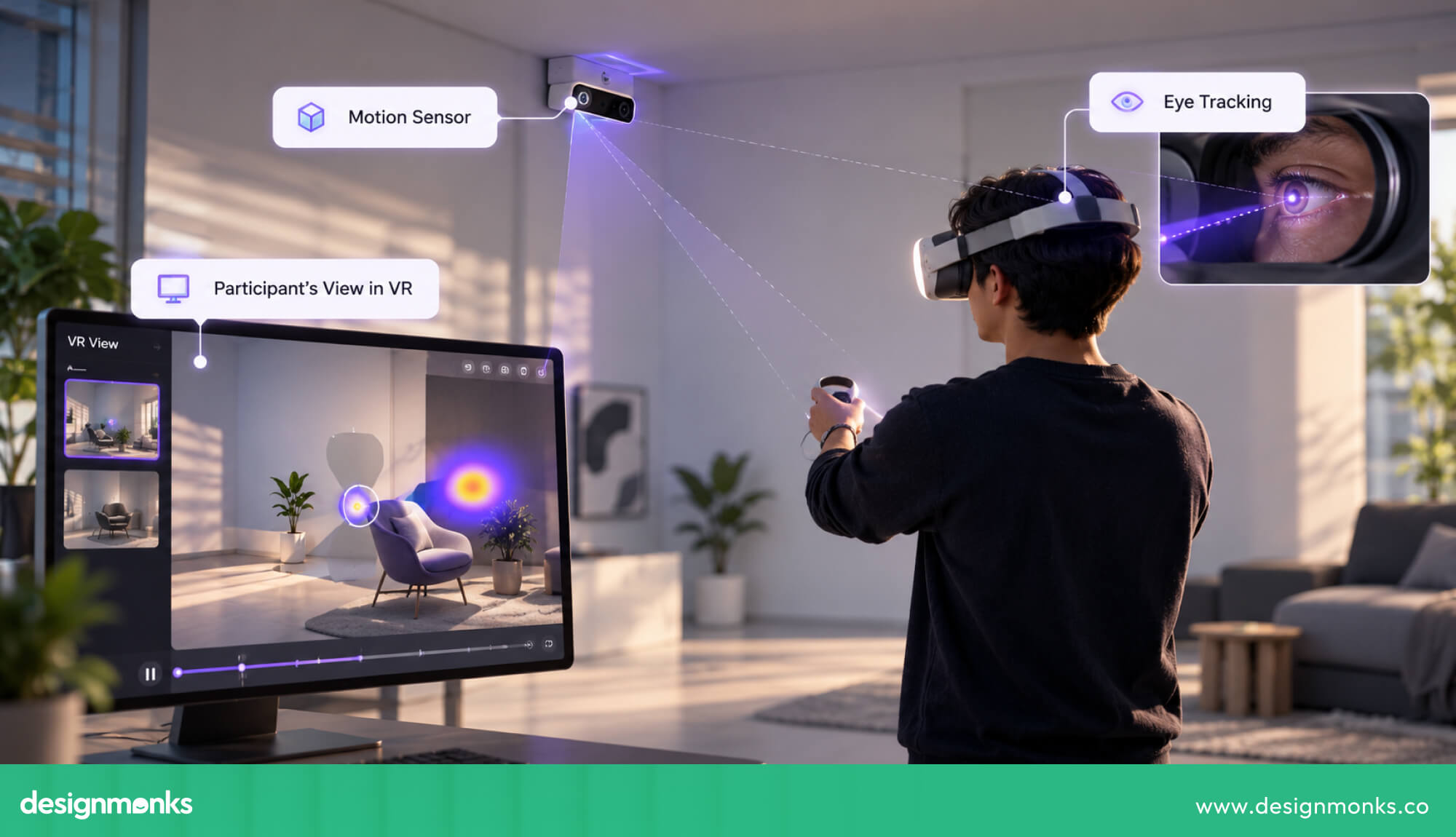
This makes navigation easier, but looking at an object does not always mean someone wants to select it. Automatically activating items when users look at them can cause accidental actions, known as the Midas touch problem.
Let users confirm important actions and protect eye-tracking data to respect their privacy.
Voice Interaction
Voice interaction lets users control VR through spoken commands, such as "Open the map" or "Go back." It is useful when their hands are busy or when voice commands are easier to use.
However, background noise can affect accuracy, and speaking aloud may feel awkward in shared spaces. Offer voice commands alongside visual menus and other controls so users always have another option.
Multimodal Interaction
Multimodal interaction means combining different input methods in one experience. For example, users might look at an object, pinch to select it, and use a voice command to change its color.
Combining hands, eyes, voice, and controllers gives users more flexibility and can improve accessibility. However, each method should work consistently so users do not get confused when switching between controls.
The goal is to make interactions flexible and easy to learn while keeping users comfortable throughout the experience.
Designing for Comfort and Preventing VR Motion Sickness
A VR experience may look impressive, but dizziness, headaches, or fatigue can make users stop using it. That's why VR UX needs to consider how people see, move, and use their bodies to keep the experience comfortable.
What Causes VR Motion Sickness?
VR motion sickness occurs when the brain receives conflicting signals. Your eyes may see the virtual world moving, while your inner ear senses that your body is still. This mismatch can cause dizziness, sweating, headaches, or nausea. Common causes include:
- Vection: Feeling as if your body is moving when it is actually still.
- Artificial movement: Using a thumbstick to move through VR while your body remains stationary.
- Sudden acceleration or turning: Quick changes in speed or direction that can cause discomfort.
- Slow or delayed visuals: Delayed responses to head movements that make users feel disoriented.
People experience motion sickness differently, so designers should offer multiple movement options rather than assuming everyone has the same tolerance.
VR Locomotion Design
Locomotion refers to how users move through a virtual world. The right method can reduce discomfort while keeping movement intuitive. You can use:
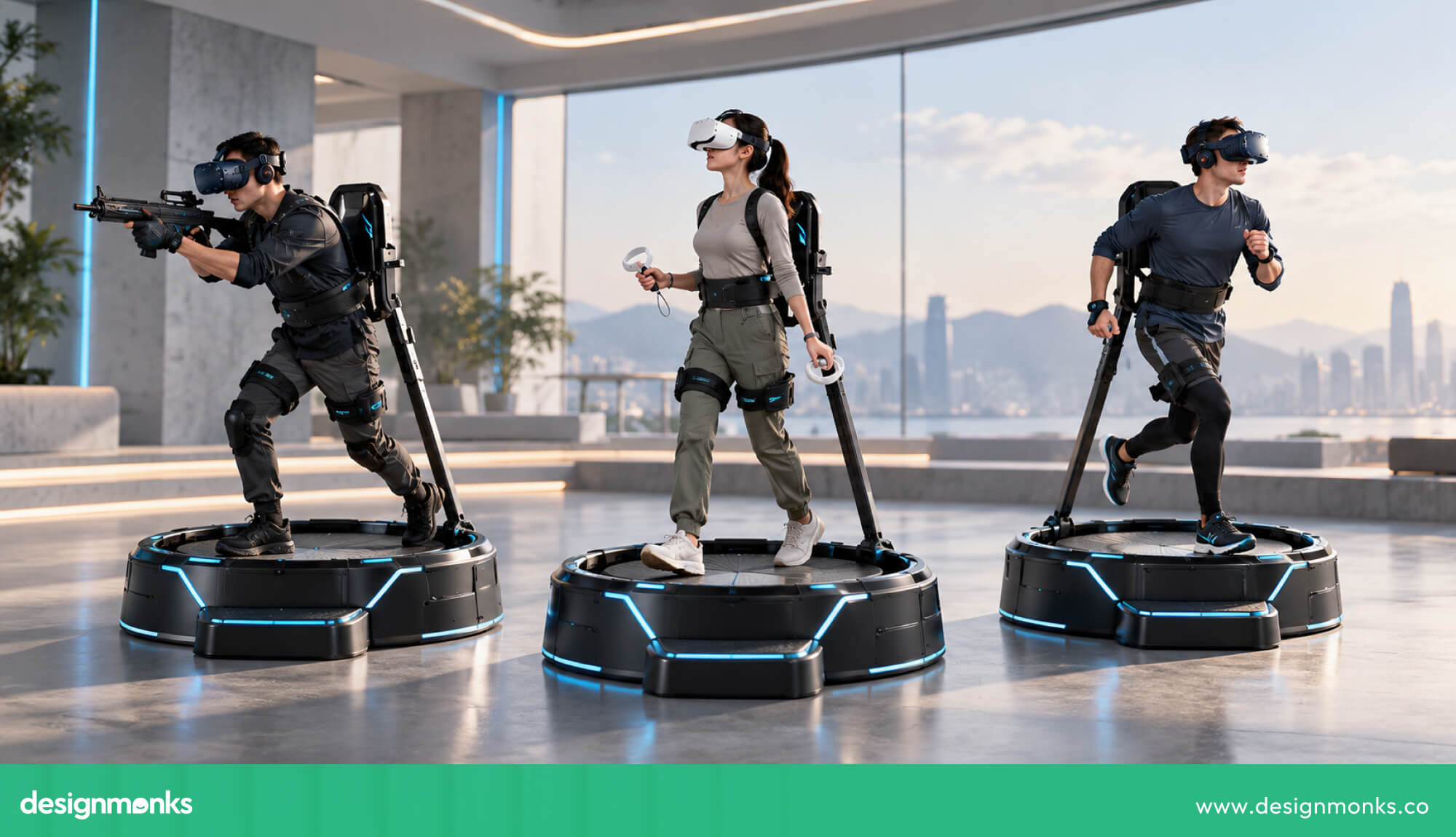
- Teleportation: Users select a location and instantly move there. It often reduces motion sickness but interrupts continuous movement.
- Smooth locomotion: Users move continuously with a thumbstick. It offers control but may cause discomfort.
- Snap turning: Users rotate in fixed steps, such as 30 or 45 degrees, to reduce discomfort.
- Smooth turning: Users rotate continuously using a controller. It feels natural to some but uncomfortable to others.
- Vignetting: The visible area narrows during movement, reducing peripheral motion that may trigger sickness.
- Room-scale movement: Users physically walk within a tracked area. It feels natural but requires enough space.
No single method works for everyone. Offer multiple options, such as teleportation and snap turning for beginners. Keep movement predictable, maintain consistent visual performance, and support seated play when possible.
Preventing Fatigue and Physical Strain
Holding arms up, turning the head repeatedly, or standing too long can cause fatigue.
Keep frequently used controls close to the body and avoid repeated overhead reaches or excessive stretching. Support seated and standing play, with adjustable interface height, reach distance, and menu positions to accommodate different users.
Provide natural break points, such as pauses between training lessons or save points in games, so users can rest comfortably.
Maintaining Orientation and Spatial Awareness
Users may feel confused if they lose track of their location or direction. Spatial awareness means understanding where you are and how objects are positioned around you. Use stable floors, recognizable landmarks, clear lighting, and predictable movement to help users navigate. Visible boundaries also prevent users from walking into furniture or leaving the safe play area.
When users can understand their surroundings and navigate confidently, VR becomes safer, more comfortable, and easier to enjoy.
User Research for VR UX
VR is physical and unfamiliar to many users, so designers need to understand their user needs before making design decisions.
Early user research services from a company like Design Monks can help them identify potential problems and create experiences that fit users’ abilities, environments, and expectations. Here's what they can do:
Identify VR User Needs and Context
Start by learning who the users are, what they want to do, and where they will use VR. Consider their experience, available space, accessibility needs, and comfort. For example, a design for a gamer with a large room may not work for a patient using VR in bed.
Create VR User Personas and Scenarios
Once designers understand users’ needs, they can create personas and scenarios to guide design decisions. VR personas should include physical abilities, surroundings, preferred controls, and comfort concerns.
Scenarios should explain how users move, whether they sit or stand, and how long they use VR. For instance, a nurse practicing a procedure while standing has different needs from a seated student exploring a historical site.
Prototype VR Experiences
With these user needs and scenarios in mind, designers can build prototypes to test their ideas. They can start with simple sketches, cardboard models, or storyboards before using tools like Unity or Unreal to test scale, distance, and interactions inside a headset.
Testing early is important because layouts that look fine on a flat screen may feel uncomfortable or confusing in VR.
Test With Real Users
After building a prototype, designers should test it with real users to find problems that may not be obvious during design. Observe where people look, what they try to touch, and where they struggle.
Include beginners and people prone to motion sickness, as they may reveal issues experienced users overlook.
How to Evaluate VR UX
User testing helps designers spot problems, but they also need clear ways to measure the experience. A good VR evaluation examines usability, presence, visual appeal, motion sickness, and users’ emotional responses.
Together, these measures show what works and what needs improvement:
VR Usability Testing
Start by asking users to complete key tasks and tracking their success rates, completion times, errors, and moments of confusion. Think-aloud sessions can also reveal why users struggle, although talking may interrupt immersion.
Measure Presence and Immersion
Beyond task performance, designers should check whether users feel present in the virtual world. Questionnaires can measure this feeling, while observation helps identify moments when immersion breaks. For example, when users notice glitches or remove their headsets.
Measure Comfort and VR Sickness
However, feeling immersed does not always mean feeling comfortable. Designers should track dizziness, nausea, eye strain, fatigue, and general discomfort. The Simulator Sickness Questionnaire helps measure symptoms, while short ratings show how comfort changes during use. Testing different session lengths can also reveal discomfort that develops over time.
Collect Qualitative User Feedback
While scores help measure usability and comfort, they do not always explain why problems occur. Interviews, observations, and open-ended questions help designers understand what users find confusing, uncomfortable, or enjoyable.
Use UX Questionnaires and Behavioral Data
Finally, designers can combine user feedback with standardized questionnaires and behavioral data for a fuller picture. The System Usability Scale (SUS) provides a standard usability score, while task completion rates, error counts, and heat maps show how users behave.
Together, these findings help teams identify problems, understand their causes, and prioritize improvements.
Common VR UX Mistakes to Avoid
VR design can fail when designers focus on how an experience looks on a screen rather than how people use it in a headset. You can avoid this by being cautious. Here are common mistakes to avoid:
- Overloading the user's field of view with too many elements.
- Making targets too small to select easily.
- Requiring excessive head movement or uncomfortable body positions.
- Using unpredictable movement that causes discomfort.
- Providing poor visual feedback or inconsistent interactions.
- Adding too much text or unclear navigation.
- Designing only for controllers while ignoring other input methods.
- Ignoring seated users or forcing unnecessary standing, crouching, or bending.
- Failing to test for motion sickness.
Most of these problems can be caught through early headset testing with real users.
VR UX Examples and Applications
VR UX changes depending on what users need to accomplish. A game must keep players comfortable during fast movement, while a training simulation must help users practice tasks correctly.
These examples show how design decisions should match each experience's purpose:
VR Gaming UX
In VR games, players need to react quickly without losing track of their surroundings. Designers can place health indicators on a virtual wrist device, let players choose between teleportation and smooth movement, and introduce controls through short, in-game tutorials.
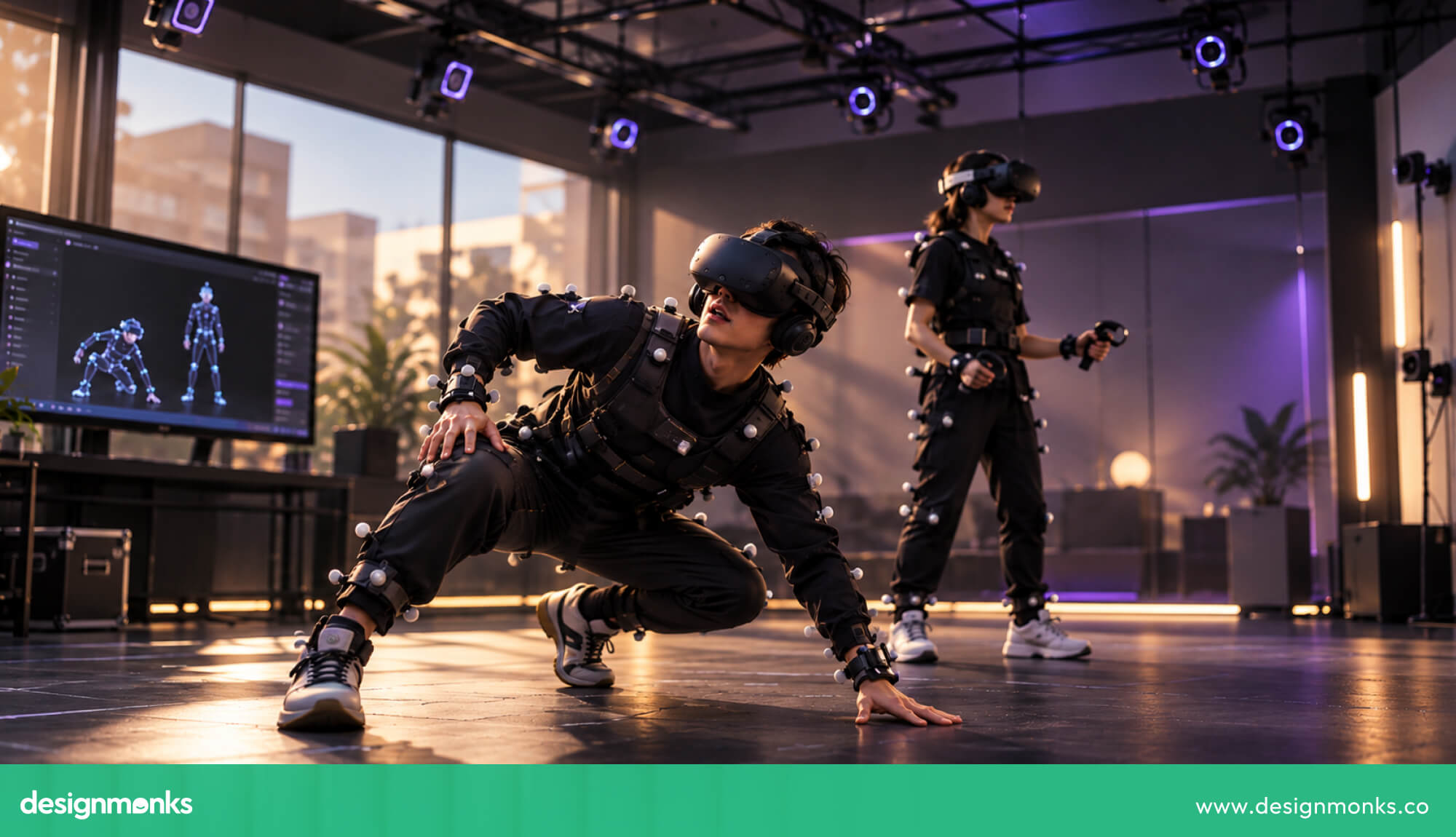
For games involving combat or fast movement, clear spatial cues also help players locate enemies and avoid obstacles without constantly turning their heads.
VR Training and Simulation UX
Training simulations must help users build skills they can apply outside VR. For example, a firefighter training simulation can recreate an emergency scene and guide users through safety procedures.
It can also provide immediate feedback when they make a mistake.
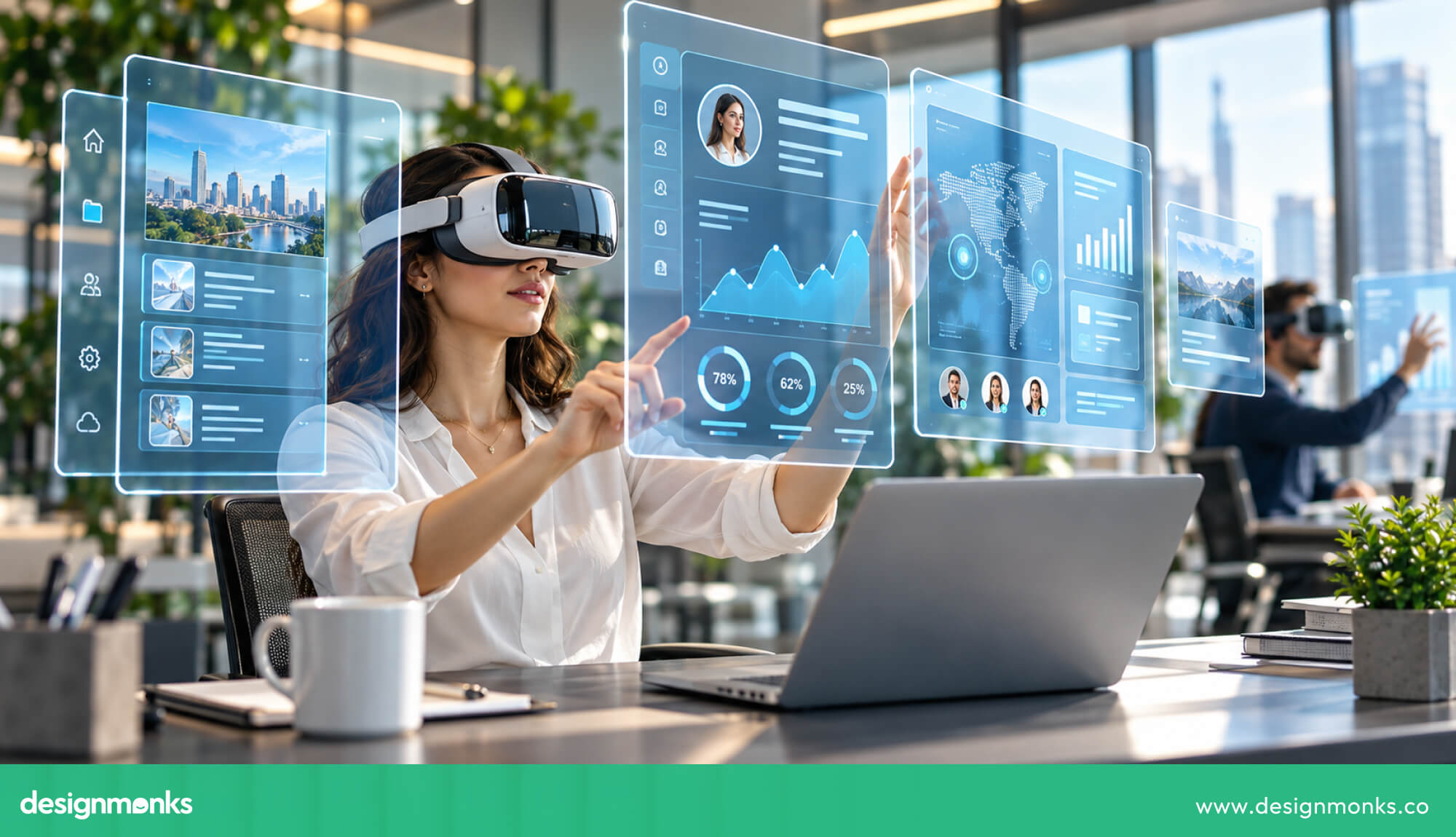
Designers should also allow users to repeat difficult steps and review their performance. This makes it easier to learn from errors without real-world risks.
VR Healthcare UX
In healthcare, VR may support pain management, rehabilitation, and patient education. A rehabilitation experience, for instance, can guide patients through prescribed movements and provide visual feedback on their progress.

Since patients may have limited mobility or low energy, designers should offer seated interactions, adjustable difficulty, simple controls, and an easy way to pause the session when discomfort occurs.
VR Education UX
VR education works best when learners can explore concepts that are difficult to understand through text or images alone. Students studying the solar system, for example, can explore the relative positions of planets in 3D and observe how they move.
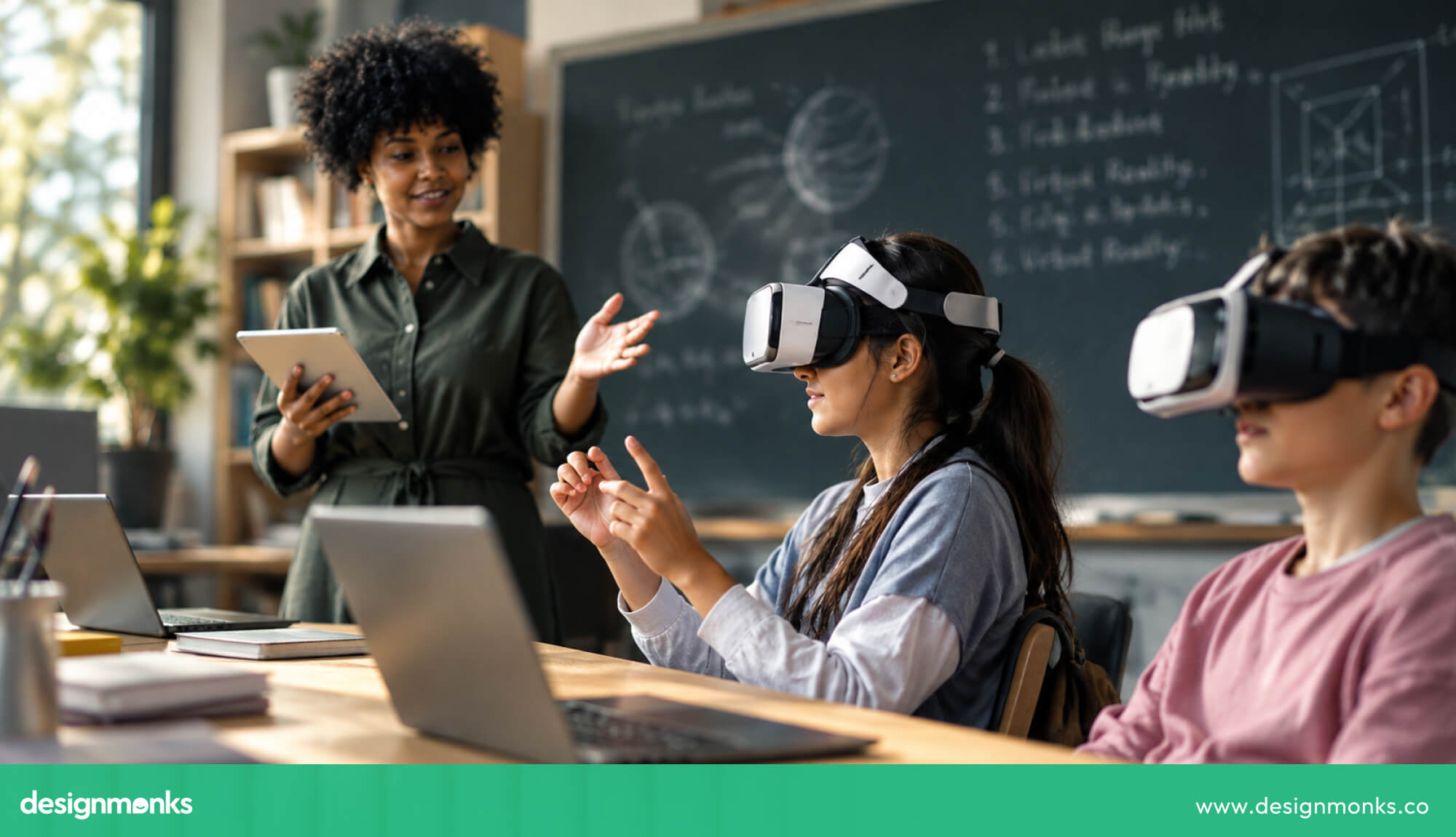
Designers should guide attention to important details, let learners control the pace of exploration, and include questions or interactive tasks to check understanding.
VR Product Visualization UX
VR lets customers examine products and spaces before making decisions. In furniture retail, users can place a virtual sofa in a room, check its size against other objects, and view it from different angles.
For architecture, they can walk through a proposed building before construction begins.
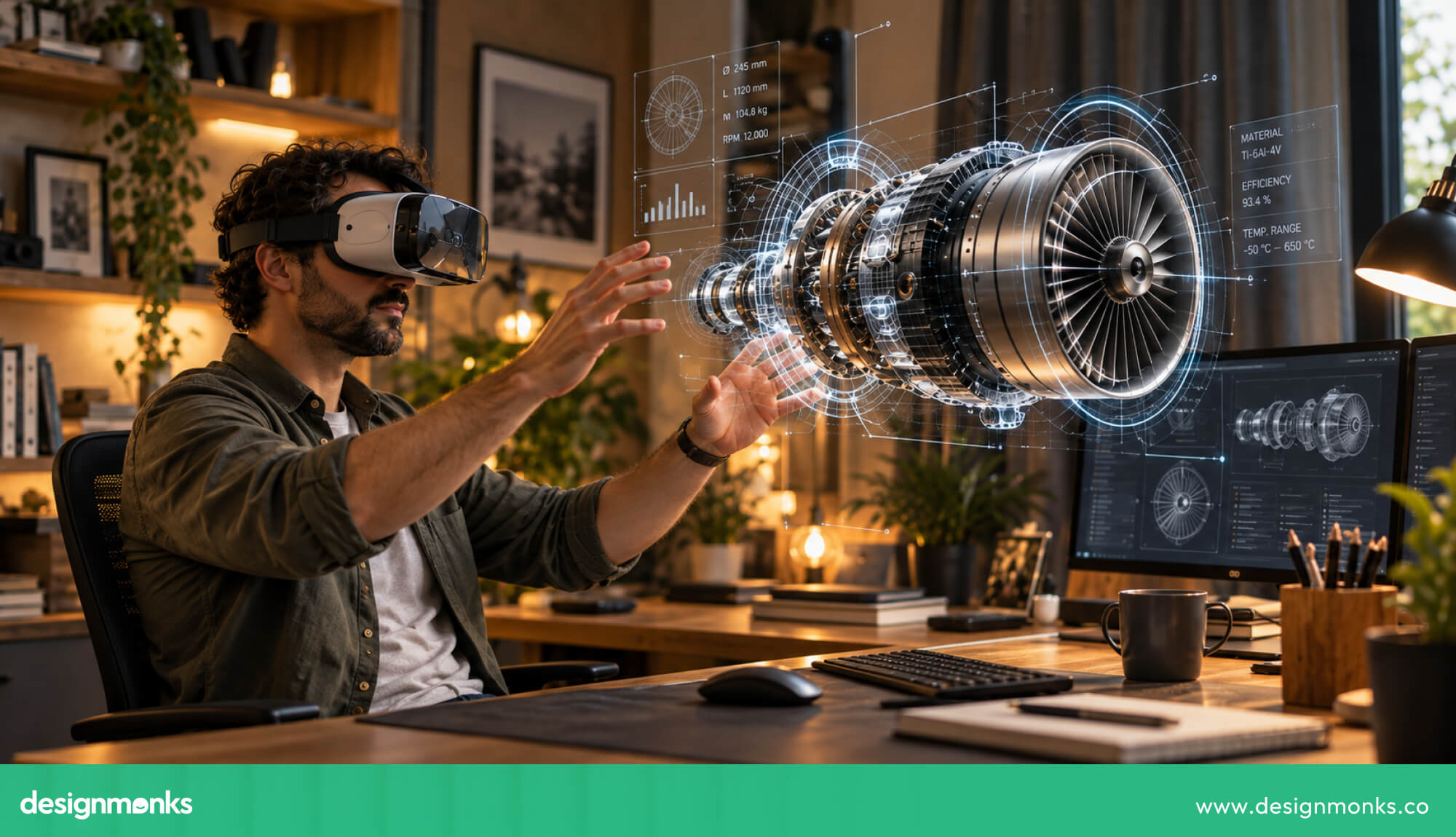
Accurate dimensions, realistic materials, and simple object controls help users judge scale, compare options, and spot potential issues earlier.
FAQs
How do you test UX in VR?
You can test UX in VR by combining usability tests, observation, interviews, questionnaires, and behavioral data. You can also measure task success, errors, presence, comfort, and motion sickness to identify problems.
How do you prevent motion sickness in VR?
You can prevent motion sickness by offering alternatives like teleportation, snap turning, and vignetting where appropriate. Maintain stable visual performance, provide clear reference points, and let users adjust comfort settings or play while seated.
What interaction methods are used in VR UX?
Common interaction methods used in VR UX are hand gestures, motion controllers, gaze and eye tracking, voice commands, and combinations of these inputs. Supporting multiple methods gives users more flexibility.


.avif)
.avif)
.avif)
.avif)


.avif)
.avif)
.avif)
.avif)








.avif)