.svg)



Key Takeaways
- ChatGPT Image 2.0 plans before creating, improving accuracy and output quality.
- Built on GPT-4o, it understands text, images, and context together.
- Generates clear text inside images, solving major past AI limitations.
- Supports consistent multi-image outputs, ideal for storyboards, branding, and campaigns.
- Combines reasoning, web data, and precision for more practical design workflows.
Most AI image tools rush to create. But ChatGPT Image 2.0 does something different, it pauses and thinks first. This small change makes a big difference. Instead of random visuals, you get images that actually follow your idea and make sense. It feels less like guessing and more like working with a tool that understands what you want.
Older tools often guessed what you meant. That is why the results felt off or incomplete. This version of ChatGPT understands your request, plans the layout, and then creates the image step by step.
Because of this, the output feels more useful and real. It is less about generating art and more about creating something you can actually use. Keep reading to see how it works and how you can use it step by step.
What is ChatGPT Image 2.0?
ChatGPT Images 2.0 is OpenAI's advanced AI image generator integrated directly into ChatGPT. It converts text prompts into high-quality visuals, known as a text-to-image tool. It supports image editing and multi-image generation.
Powered natively by the GPT-4o model, it processes text, images, and context multimodally for precise, context-aware results.
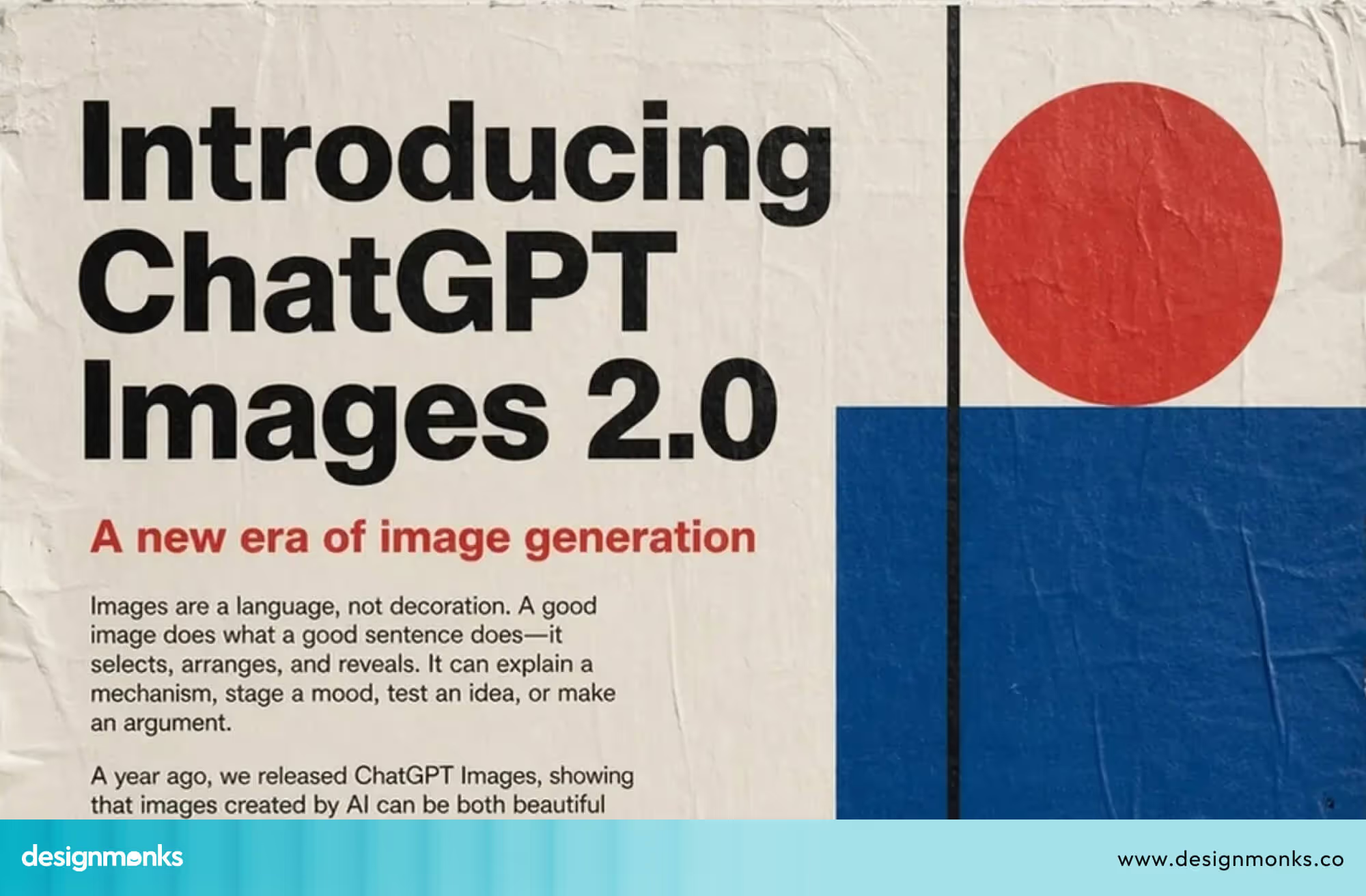
ChatGPT Images 2.0 succeeds earlier ChatGPT Images releases like 1.5 and replaces DALL·E 3 as OpenAI's flagship image tool. Previous DALL·E models excelled at creativity but faltered on rendering clear text in images, capturing fine details, and strictly adhering to complex prompts.
The newer model understands your instructions better and follows them more accurately. Images have greater photorealism, cleaner compositions, and up to 2K resolution with consistent characters across sets.
It uses a “thinking” step to understand your request before creating. This helps plan the image better and gives more accurate results.
Key Features of ChatGPT Image 2.0
So what actually makes this model different from everything that came before it? Here is a breakdown of the eight features that matter most:
Thinking Mode (plans before creating)
This is the headline feature and the one that changes everything. Thinking Mode gives ChatGPT Images 2.0 the ability to reason before it renders. Instead of jumping straight to generation, the model first plans the composition, checks spatial relationships, and verifies accuracy.
This means the model can handle instructions that would confuse older tools. It can now easily design a menu with ten items and custom pricing or relevant designs for a special jersey. This features also let designers utilize chatgpt in UX design.
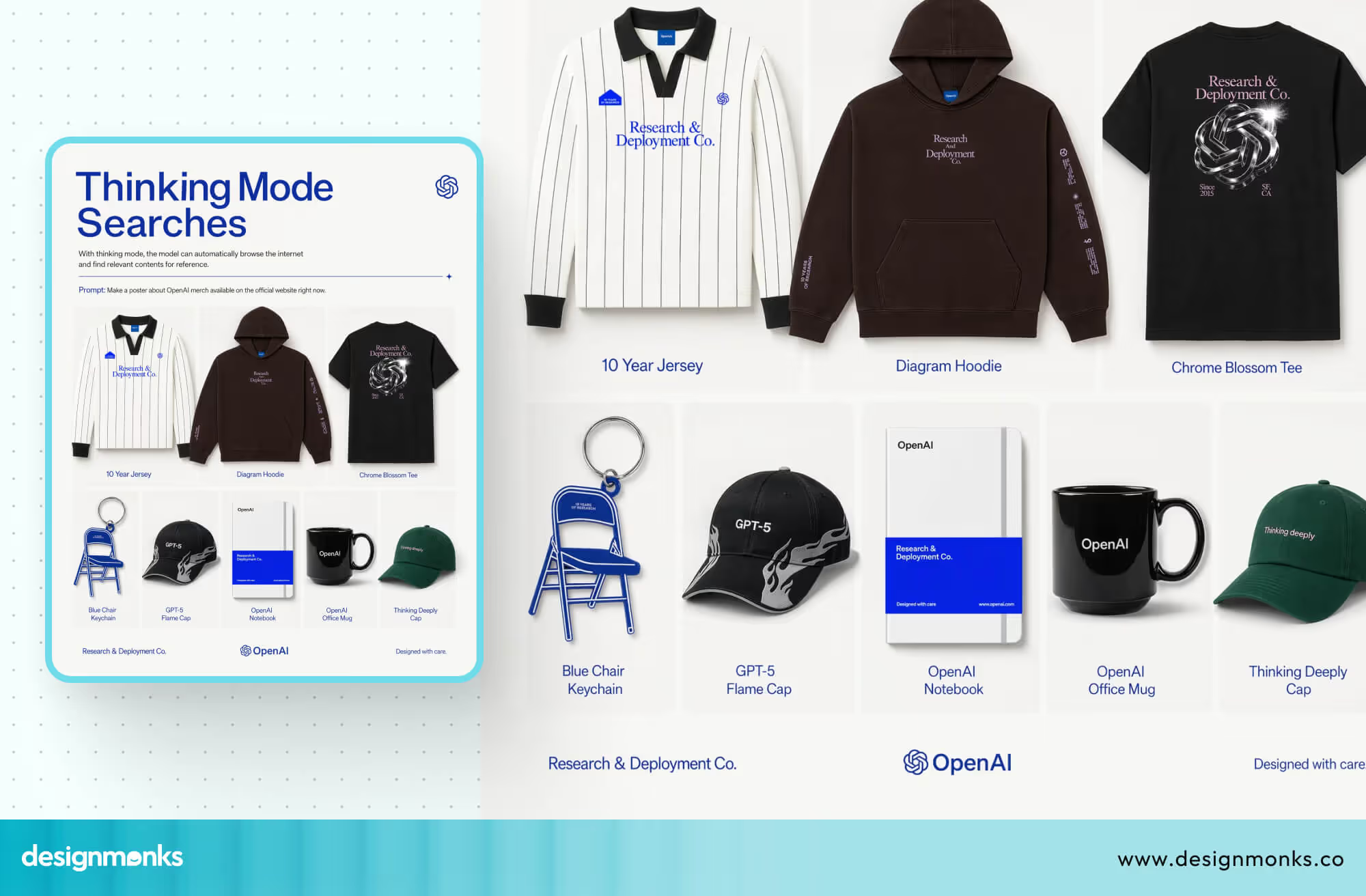
It can even design a comic strip where the same character appears in eight panels, or a marketing banner with a specific headline and layout. With Thinking Mode on, it gets these right. Without it, spatial logic and photorealism suffer noticeably.
Live Web Search (real-world data support)
This is where ChatGPT Images 2.0 pulls away from every other image generator on the market. When Thinking Mode is active, the model can search the web for real-time information before generating an image.
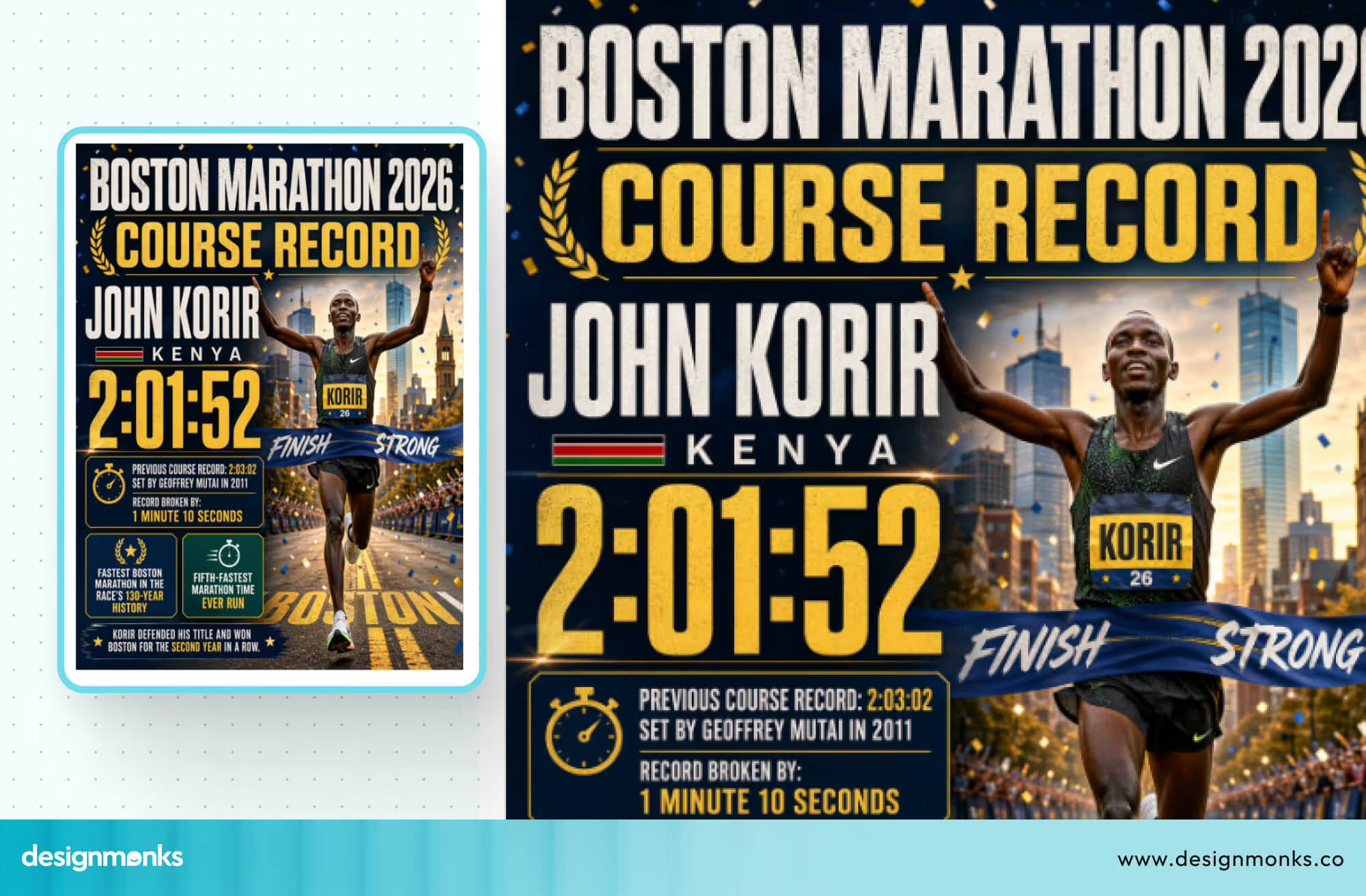
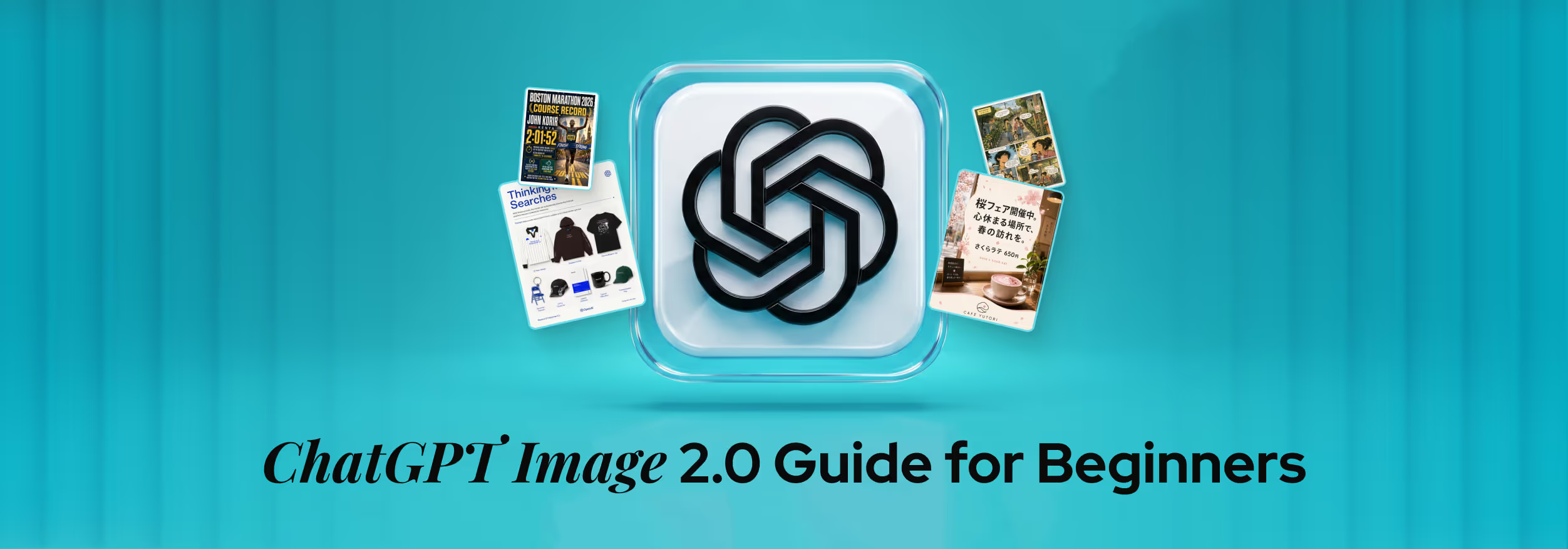
Independent testing proved this dramatically. DataCamp asked the model to generate a poster about the Boston Marathon, a race that had finished the day before the model launched.
The result included the correct winner, the accurate finishing time, and the right record margin. All facts were verified. The same prompt given to ChatGPT Images 1.5 got the record times backwards and fabricated statistics entirely.
Better Text Rendering (clear text inside images)
Ask any designer about the biggest frustration with AI image tools, and they will tell you the same thing: the text always comes out wrong.
Garbled letters, misspelled words, nonsensical characters, it has been the defining limitation of AI image generation since it began. ChatGPT Images 2.0 fixes this. Check this layout of a multi-column editorial spread:
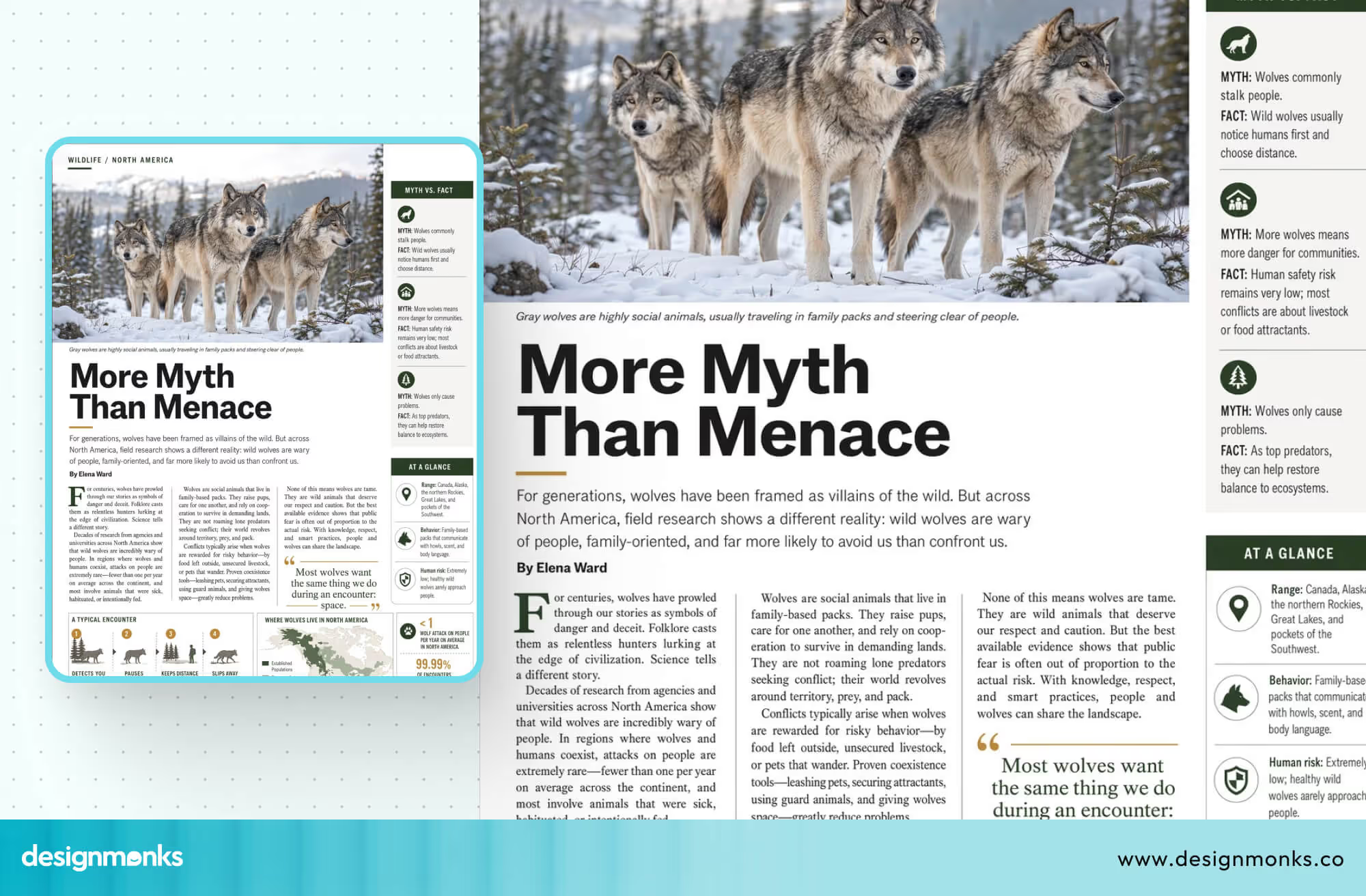
It’s been generated by ChatGPT images 2.0, it has a bold headline, body copy across three columns, a "Myth vs. Fact" sidebar with icons and labels, an "At a Glance" stats panel, pull quotes, captions, and a data map with legends.
Every single one of those text elements would have come out unreadable in a previous AI image model. With ChatGPT Images 2.0, that entire layout becomes generatable from a single prompt, and it's perfectly readable as well.
This one capability unlocks entire categories of work that were previously impossible with AI. You can now do editorial magazine layouts, infographics, UI mockups with readable interface copy, and more.
Greater Precision and Control
This is something that sounds simple but is actually rare in AI image tools. When you tell it exactly what you want, it does exactly that.
Previous models would get close. They would approximate your idea, hit the general vibe, but leave you adjusting and re-prompting until something usable came out. ChatGPT Images 2.0 does not approximate, it executes to the T.
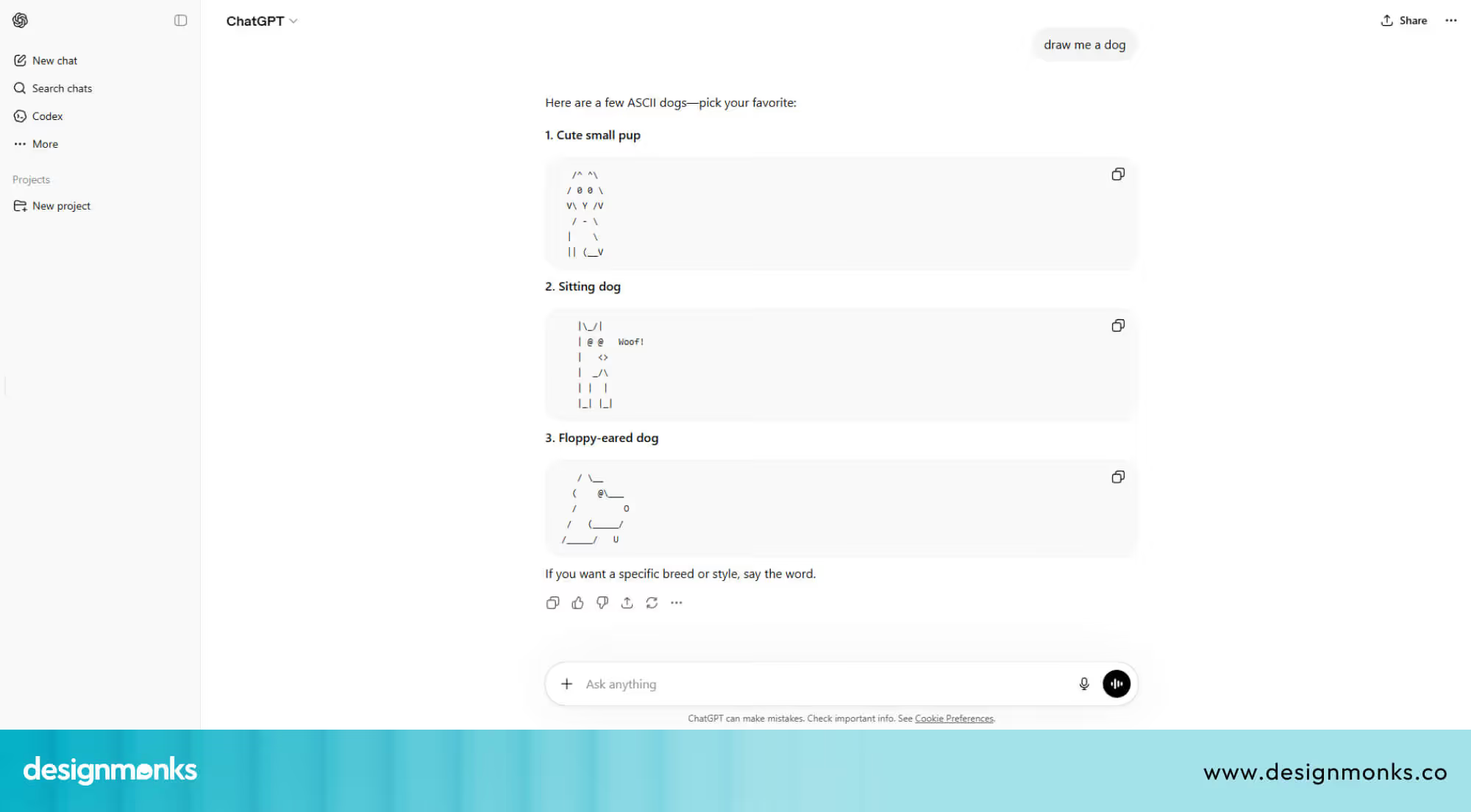
Small text stays sharp. Icons render correctly. Dense layouts hold together. Subtle style details you specified in your prompt actually show up in the output.
This matters most when precision is the point. If you are building a UI mockup, a branded infographic, or a product visual with specific elements in specific places, "close enough" is not good enough. This model closes that gap.
Multi-Image Consistency
With Thinking Mode enabled, ChatGPT Images 2.0 can generate up to ten images from a single prompt. It can generate images with characters, objects, and a visual style staying consistent across every frame.
This was technically possible before through API workarounds, but it is now native to the interface.
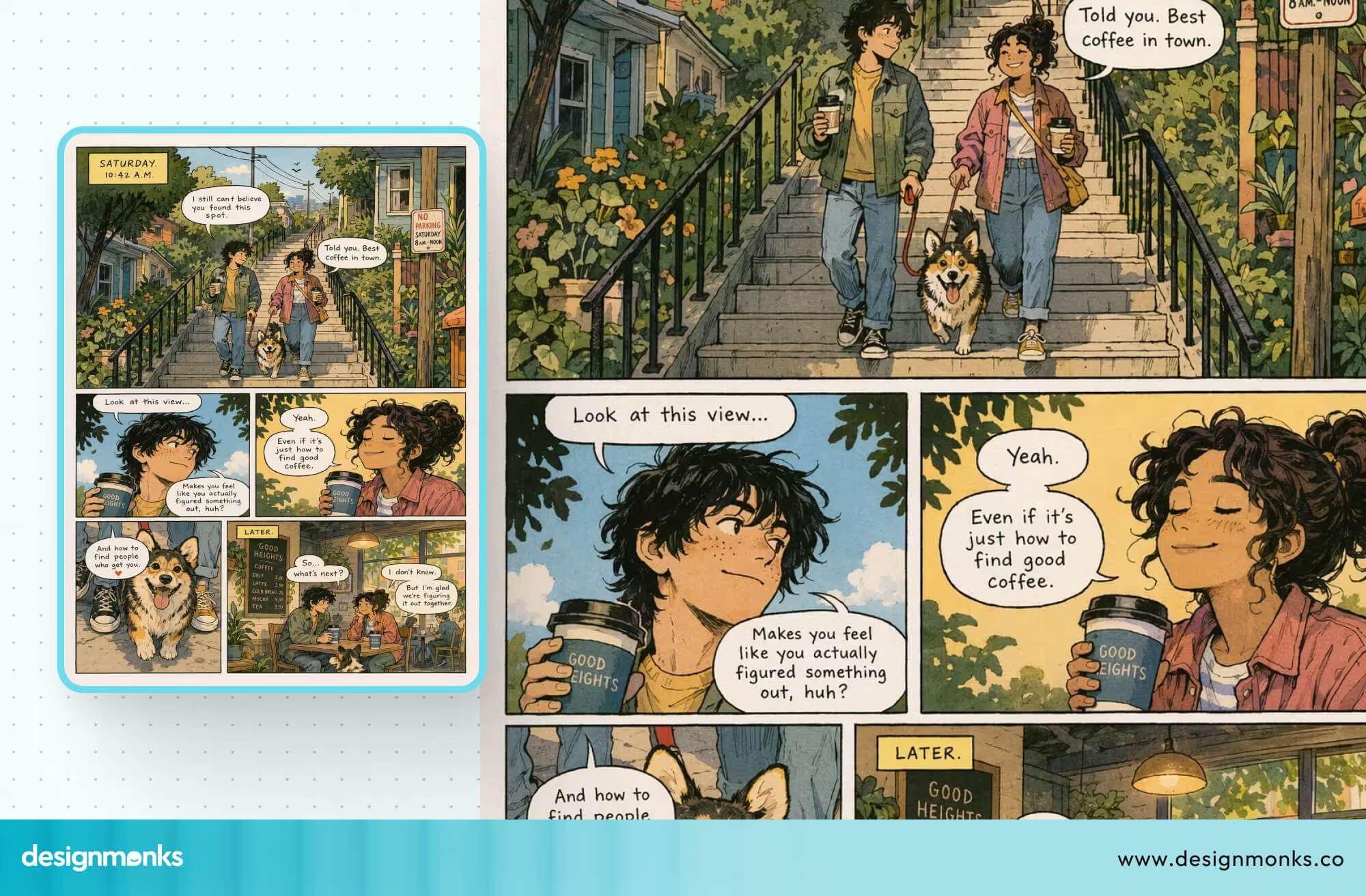
The practical applications are significant, such as Storyboards, multi-panel comic strips, product variations, and outfit comparisons. All of these now become genuinely usable workflows rather than manual, frame-by-frame efforts.
Strong Multilingual Support
The model does not just translate, it renders. There is a meaningful difference between outputting translated text and correctly rendering the stroke order, character spacing, and typographic logic of non-Latin scripts.
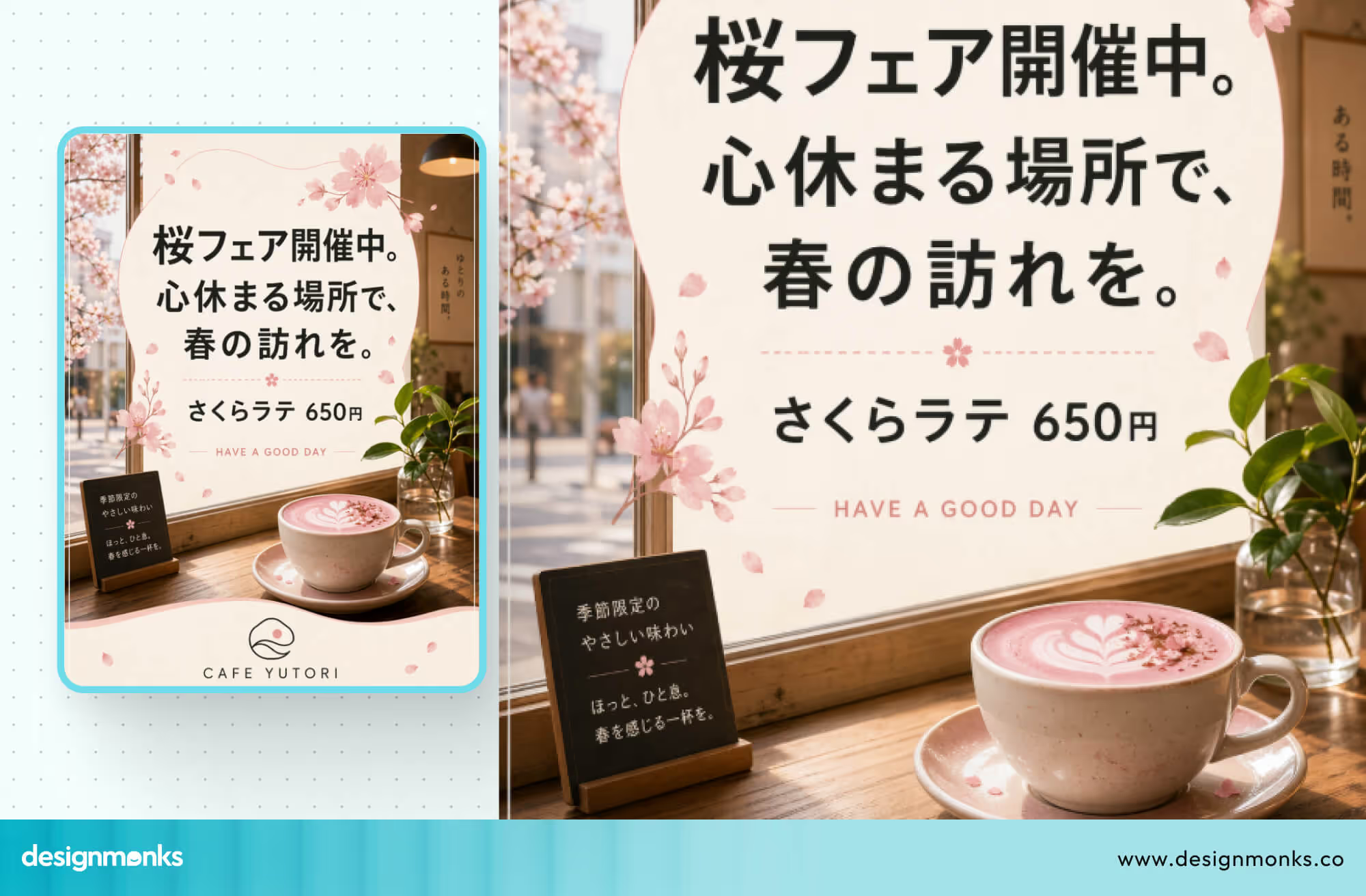
ChatGPT Images 2.0 handles Japanese, Korean, Chinese (CJK characters), Hindi, Bengali, and Arabic with near-character-level accuracy. This was verified by a native Japanese speaker during DataCamp's hands-on testing, who confirmed that the rendered Japanese felt natural and was immediately readable.
This was a significant step beyond the garbled characters that previous models produced.
Flexible Aspect Ratios
The model supports aspect ratios from 3:1 to 1:3 at up to 2K resolution. It covers everything from ultra-wide banners to tall mobile stories. But what makes this genuinely useful is that the model does not just crop. It recomposes.
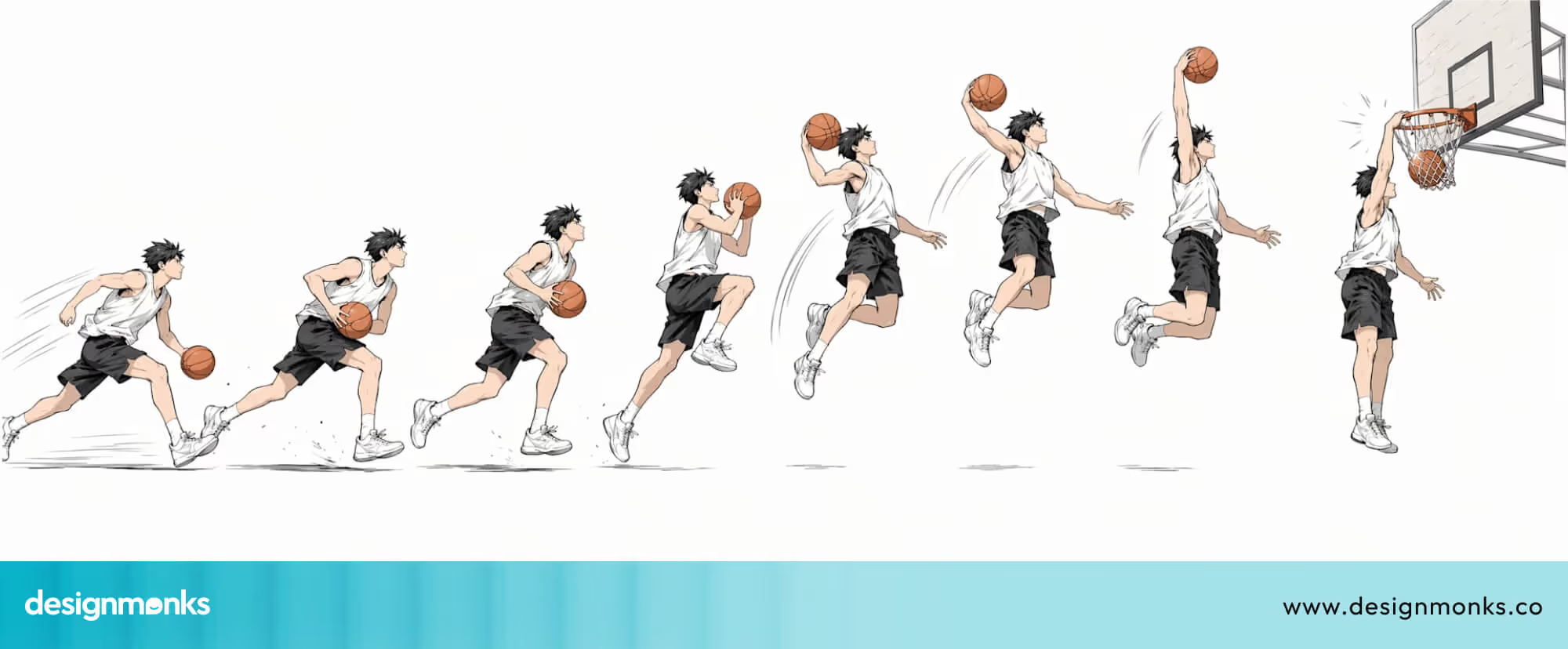
When asked for the same scene as a landscape banner, a mobile wallpaper, and a square social post, it selected the appropriate aspect ratio for each context and rearranged the composition accordingly.
It centered its elements, adjusted framing, and maintained visual coherence across all three. It even chose aspect ratios automatically based on style: landscape for photography, portrait for manga, and square for pixel art.
Improved Realism and Style
The photograph here is not pulled from a fashion archive, this is the kind of output ChatGPT Images 2.0 can produce. The grain, the lighting, the mood, the composition, it reads like a page torn from a high-fashion editorial shot on film.
That is what stylistic realism actually means in practice. Not a generic AI image with a filter on top, but something that genuinely looks like it was made with intention. The right light source, the right shadow depth, the right atmosphere for the aesthetic you asked for.
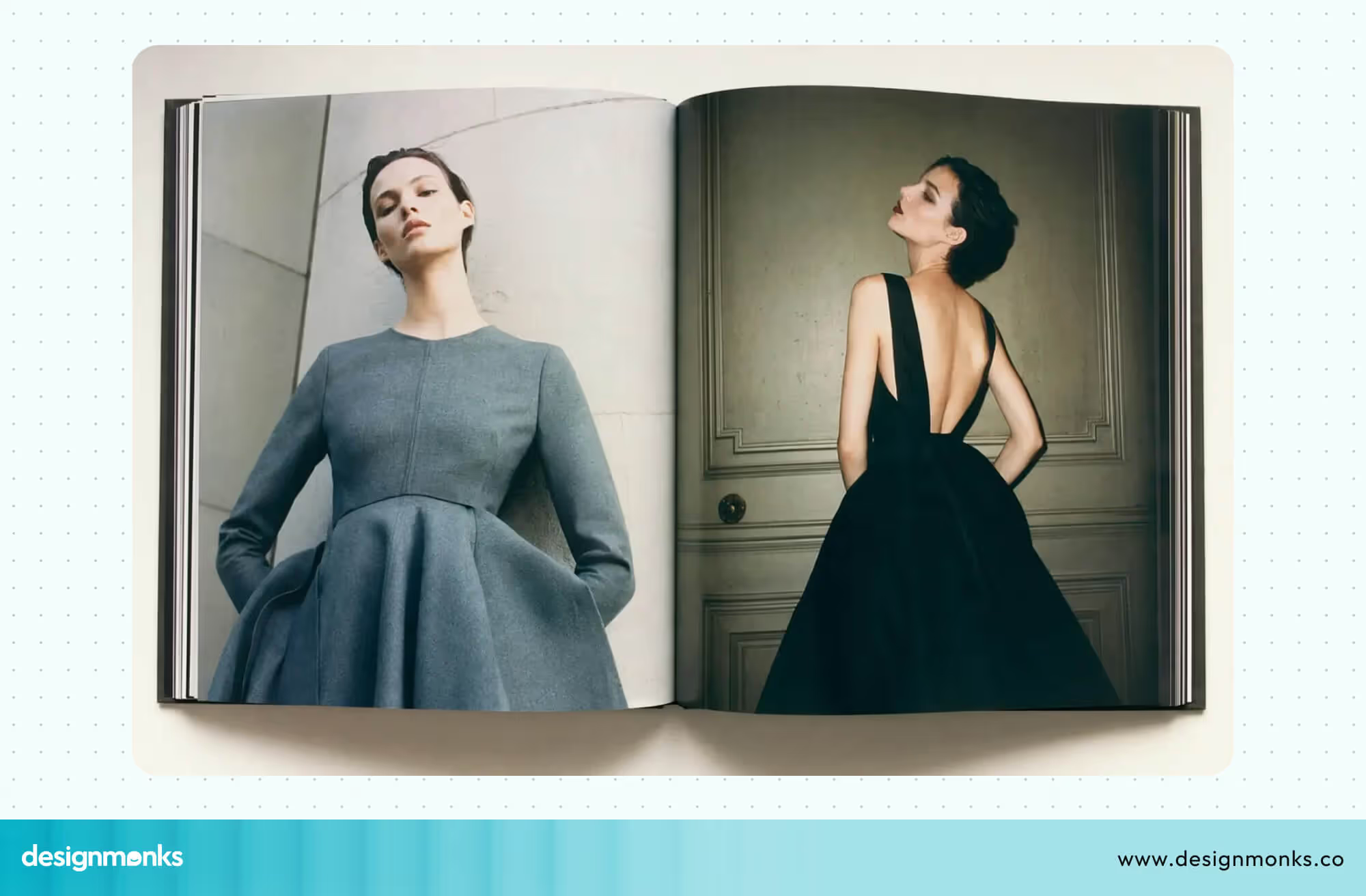
And it is not limited to fashion photography. The same model that produces this kind of editorial realism can switch to 1990s Japanese manga ink rendering, 16-bit pixel art, or architectural visualization.
All of which can be done from the same prompt session, all with the same level of authenticity to each style.
For brands, this matters more than it sounds. Consistent visual style across multiple outputs is one of the hardest things to achieve with AI image tools. ChatGPT Images 2.0 makes it possible.
How ChatGPT Image 2.0 Works?
You do not need to understand machine learning to use this tool. But knowing what happens under the hood will help you prompt better and get results faster:
It Thinks Before It Draws
Most older image tools started with random noise and shaped it into an image over hundreds of steps. It was great for textures but unreliable for following specific instructions.
ChatGPT Images 2.0 works differently. It plans the composition, checks spatial relationships, and verifies text accuracy before generating anything. When Thinking Mode is on, it also searches the web for real-world references it needs.
The result is outputs that feel deliberate rather than approximate.
OpenAI has not disclosed the exact architecture. But it is confirmed that it’s a complete rebuild and no longer runs on the same pipeline that powered earlier versions.
The Role of Your Prompt
Because the model reasons through your request, you can write in plain conversational sentences instead of keyword chains. No need to learn Midjourney-style syntax.
That said, specificity still wins. A vague prompt leaves more decisions to the model. A specific one on subject, context, style, format, and any text content gives it a clear brief to execute.
The more precise your input, the more predictable your output.
How to Use ChatGPT Image 2.0 (Step-by-Step)
Getting started on ChatGPT images 2.0 is straightforward. Here is exactly how to access the model, write prompts that work, and refine images until you have what you need:
Step 1: Access the Model
For ChatGPT Images 2.0, you dont need to download a new app or create a separate account. It's already built into ChatGPT. For free users, just head to chat.openai.com, type your prompt, and you’re good to go. The model is already set as the default.
If you are on a paid plan (Plus, Pro, Business, or Enterprise), you need to select a reasoning or Pro model in your settings. The model will automatically activate web search, multi-image generation, and output verification when your prompt calls for it.
Step 2: Write Effective Prompts
Because the model uses reasoning, you can write naturally but a clear structure gives you better results. Here is a prompt formula that works consistently:
[Subject] + [Setting or Context] + [Visual Style] + [Technical Format] + [Text Content in quotes if needed]
Examples:
Weak: "A coffee shop menu", Strong: "A vintage-style coffee shop menu with handwritten-style fonts, eight items with prices, warm sepia tones, on aged parchment paper."
Step 3: Be Specific About Layout Before Style
The model follows spatial instructions well, but only if you give them correctly. If you need something on the left, specify it as being on the left. If you need text at the top, say top. Layout precision comes from your prompt, not from guessing.
Step 4: Specify Text Exactly
If your image needs readable text, such as a headline, a label, or a price, put it in quotes inside your prompt. The model will render it accurately. "A poster with the headline 'Grand Opening, Saturday April 26'" will produce exactly that headline, spelled correctly, in the image.
Step 5: Use Iteration, Not Perfect Prompts
One of the biggest practical advantages of ChatGPT Images 2.0 is conversational editing. You do not need to get everything right in your first prompt. Generate a starting image, then refine it with plain-language follow-ups:
- "Make the lighting warmer."
- "Change the text to say 'Now Open' instead."
- "Generate four more versions with different color palettes."
DataCamp's testing confirmed that usable results typically emerge within three editing turns, even if you’re starting from a rough or approximate first prompt.
Step 6: Know When to Use Thinking Mode
Use Thinking Mode for anything complex, like infographics, multi-panel content, layouts with embedded text, or sketch-to-image conversions.
Use Instant Mode when you need speed, and the task is straightforward. For example, when you need a simple product image, a background, or a portrait.
ChatGPT Image 2.0 vs Other AI Image Generators
How does ChatGPT Images 2.0 actually stack up against the tools that were already popular? Here is a comparison across the three most common alternatives:
ChatGPT vs Midjourney
Midjourney remains the uncontested leader for artistic quality. It produces visually stunning, intentional-looking images with minimal prompting. Its aesthetic output still outpaces ChatGPT Images 2.0 for pure creative and campaign work.
But Midjourney has persistent limitations that matter in real workflows.
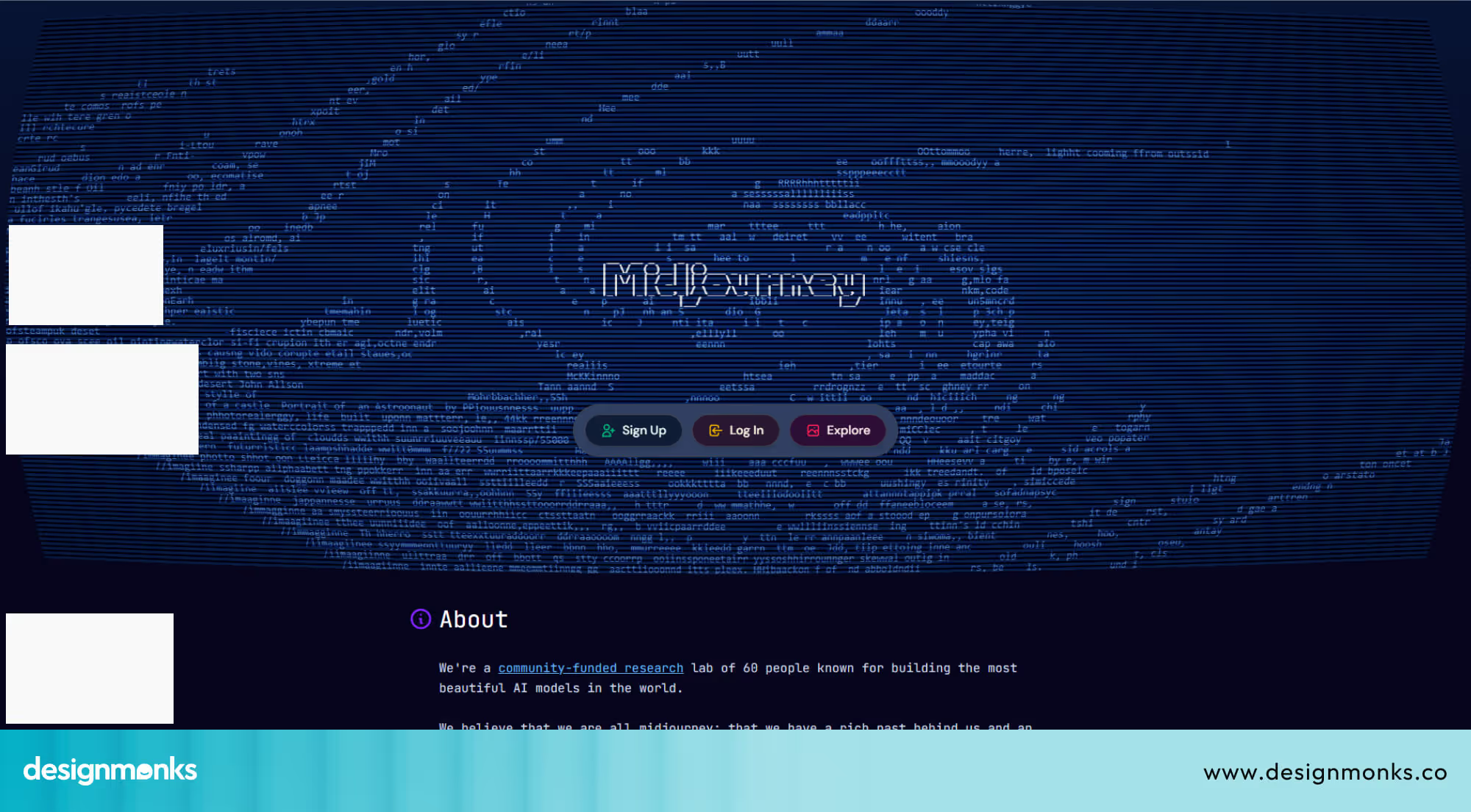
Text accuracy is unreliable with Midjourney. Generating readable text inside images typically requires post-processing in an external editor. There is no reasoning capability, no web search, and no native API for enterprise workflows in Midjourney either. Multi-image character consistency requires workarounds.
So, for text accuracy, instruction-following, or reasoning-powered generation, choose ChatGPT Images 2.0. Midjourney is good for beautiful and artistic images where aesthetics are everything.
ChatGPT vs Stable Diffusion
Stable Diffusion 3.5 is the open-source champion. It‘s free to run locally, infinitely customizable through LoRA training, ControlNet, and ComfyUI workflows, and offers complete privacy. For technical users who need maximum control, it remains the strongest option.
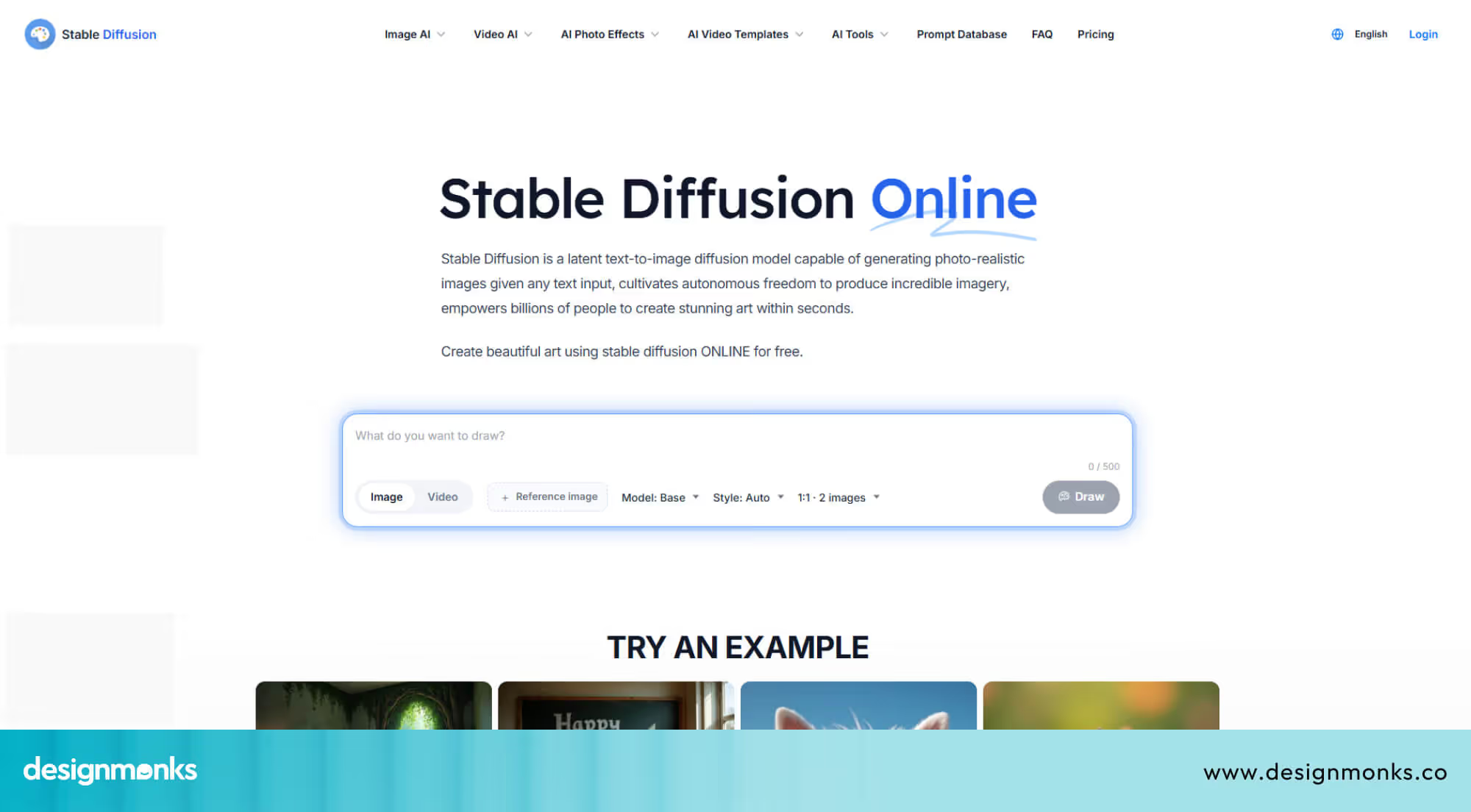
However, it requires real technical expertise and hardware (or cloud GPU costs). Text rendering is improved, but still not competitive with ChatGPT Images 2.0. There is no reasoning, no web search, and no conversational editing interface either.
Stable Diffusion wins for unlimited customization, privacy, and zero API costs at scale. But ChatGPT Images 2.0 wins for ease of use, text accuracy, and reasoning-powered generation.
ChatGPT vs DALL·E 3
This comparison is straightforward because DALL-E 3 is being retired on May 12, 2026. ChatGPT Images 2.0 is two full generations ahead.
It has native reasoning where DALL-E 3 had none, near-perfect text rendering where DALL-E 3 frequently garbled text. Moreover, ChatGPT Images 2.0 has multi-image batch generation, where DALL-E 3 generated one image at a time. It can also conduct live web search, where DALL-E 3 had no such capability.
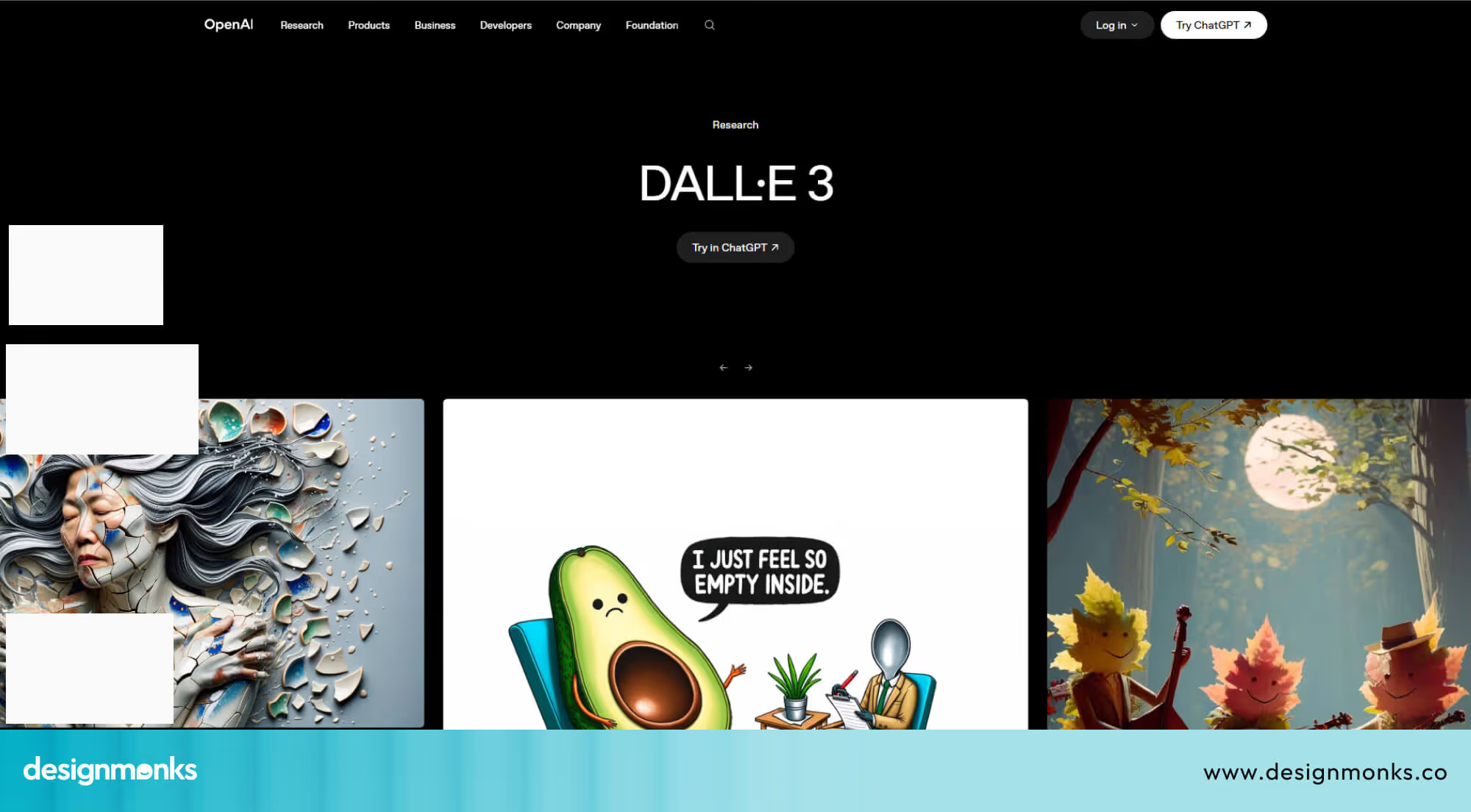
DALL-E 3 is being discontinued. If you are currently using it, migrate to ChatGPT Images 2.0 before May 12, 2026.
Use Cases of ChatGPT Image 2.0
This is where the technical improvements translate into practical value. Here are the use cases where ChatGPT Images 2.0 delivers results that were simply not possible with previous tools:
- Marketing and Ad Creative: Create social media posts, ads, and banners in different sizes from one prompt. Text like headlines and buttons appears clear, so no extra editing is needed.
- Product Photography: Make product mockups and design ideas without a photoshoot. Just describe lighting, background, and camera angle in simple words.
- Infographics and Data Visuals: Create charts, diagrams, and labeled visuals. Text and structure appear correctly, which was hard before.
- Social Media Content: Generate images for posts, stories, and banners. Different sizes work easily, and the style stays consistent.
- Thumbnails and Cover Images: Design YouTube thumbnails, blog covers, and ebook covers. Titles can appear clearly inside the image.
- Educational Visuals: Create diagrams, step-by-step guides, and learning posters with clear labels.
- QR Code and Branded Designs: Generate creative images with QR codes or brand elements built into the design.
Limitations and Challenges of ChatGPT Images 2.0
No tool is perfect, and ChatGPT Images 2.0 is no exception. Knowing where it falls short will save you time and set the right expectations before you build a workflow around it:
- Thinking Mode is Limited: The features that make this model genuinely powerful, such as web search and multi-image generation, are locked behind a paid plan. Free users get Instant Mode, which is faster but skips the reasoning step entirely.
- Web search has a cutoff: Even on paid plans, web search only activates inside Thinking Mode, and the model's training data stops at December 2025. Anything after that date will not be in its training data unless Thinking Mode pulls it from the web.
- Physical reasoning gaps: The model can still get physical details wrong. For example, shadows falling in the wrong direction, objects positioned awkwardly, or fine textures breaking down in dense compositions. Not common, but it happens.
- Stricter copyright guardrails: Prompts that reference specific artists, characters, or IP by name often get blocked. The workaround is describing the style instead of naming it, but it adds friction that most users do not expect.
- Bias in visual representation: Like every AI model trained on large datasets, it carries inherent bias in how it represents people, cultures, and places.
Future of AI Image Generation
ChatGPT Images 2.0 is not just a better image generator, it signals a shift in how the entire category is evolving. Here is where things are headed:
Reasoning Becomes the New Standard
The model demonstrated that integrating chain-of-thought planning with image generation produces measurably better results for complex tasks. Competitors, including Google's Nano Banana 2, are already developing comparable reasoning in their UX design capabilities.
Within the next product cycle, reasoning-native image generation is likely to be the baseline expectation rather than the differentiator.
Integration with Design Workflows
OpenAI confirmed that ChatGPT Images 2.0 is coming to Adobe, Figma, and Canva. It’s a direct signal that AI image generation is moving out of standalone tools and into the professional environments where creative teams already work.
The shift from "generate an image" to "generate an asset inside my existing workflow" is already underway.
Real-Time Generation and Personalization
As model efficiency improves, you will be able to generate and edit images instantly. The tool will also follow your brand style using your saved designs and references.
FAQs
Is ChatGPT Images 2.0 free to use?
ChatGPT Images 2.0 is free for all users through Instant Mode. However, the most powerful features like Thinking Mode, web search, and multi-image generation require a paid plan starting at $20/month (Plus). Free users can still generate images, but without the reasoning step.
Can ChatGPT Images 2.0 write text inside images accurately?
Yes, ChatGPT Images 2.0 can write text inside images accurately. It can render readable text with above 95% accuracy on the first attempt, across English, Japanese, Korean, Chinese, Hindi, Bengali, and Arabic.
Does ChatGPT Images 2.0 work without any prompting experience?
Yes, ChatGPT Images 2.0 understands plain conversational language. You can describe what you want the same way you would explain it to a designer, no special commands, no keyword chains required.


.avif)
.avif)
.avif)
.avif)


.avif)
.avif)
.avif)
.avif)





.avif)